
To add Slider Images to your SPA website:
1. Go to Boost Login Page to login to Boost Web.

2. Enter your Username, Password and click Login.

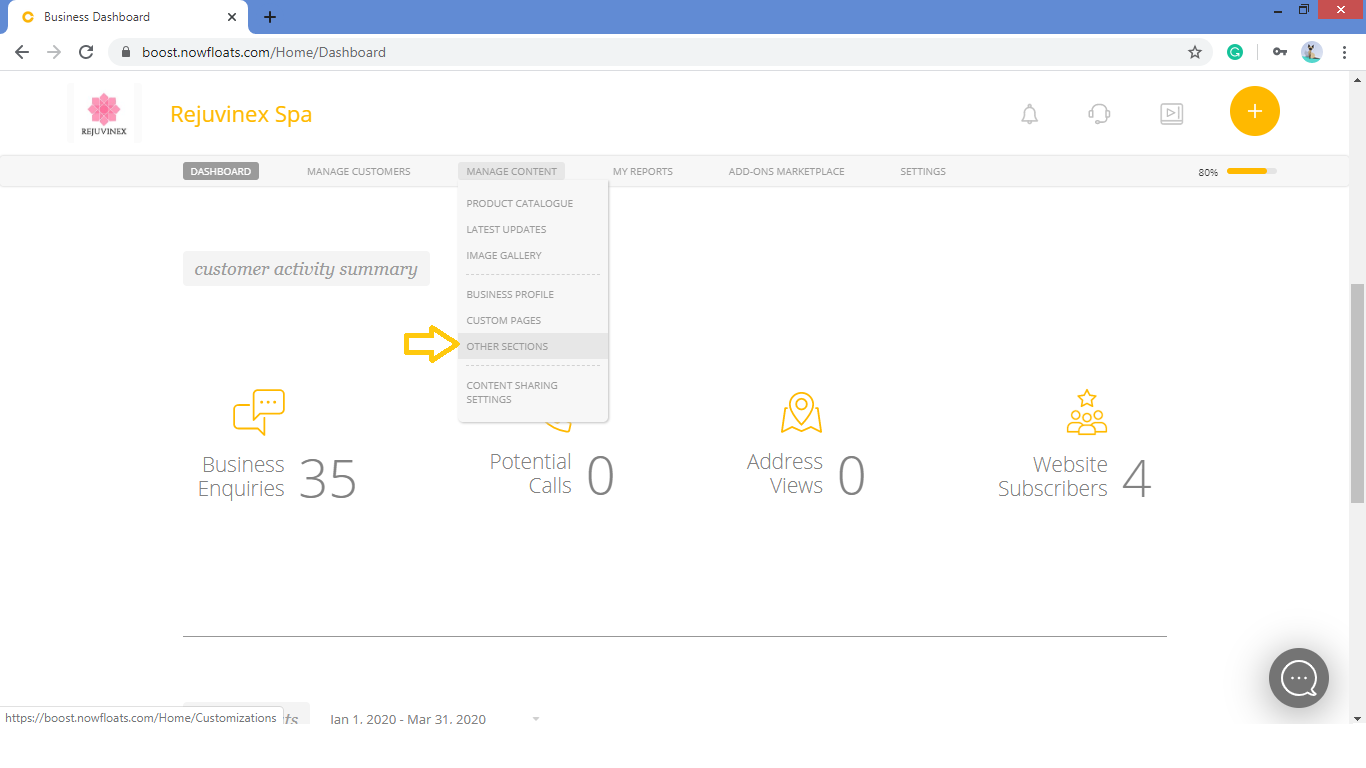
3. As soon as you log in, you can see the dashboard from where the entire business site can be managed.Go to Manage Content in the header menu and click on Other Sections.
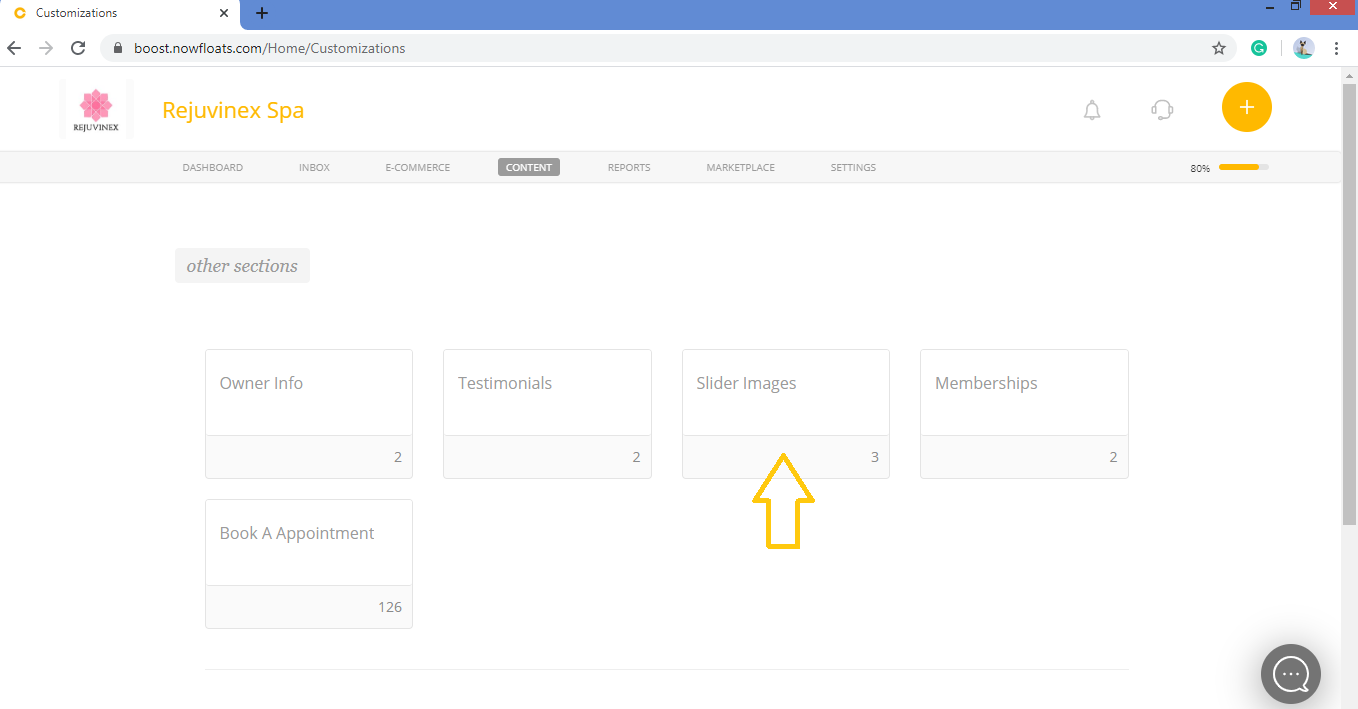
4. Look for the Slider Images card and click on it.
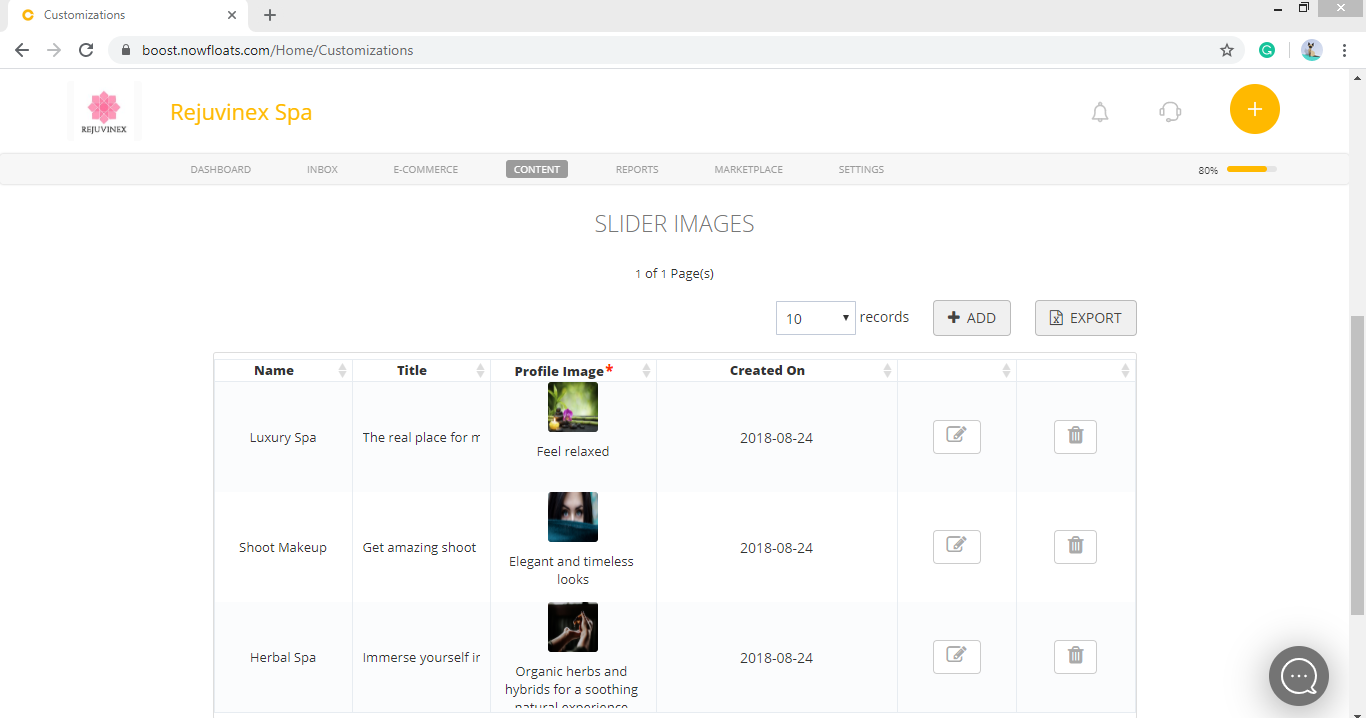
5. Scroll down to see the Slider Images section.
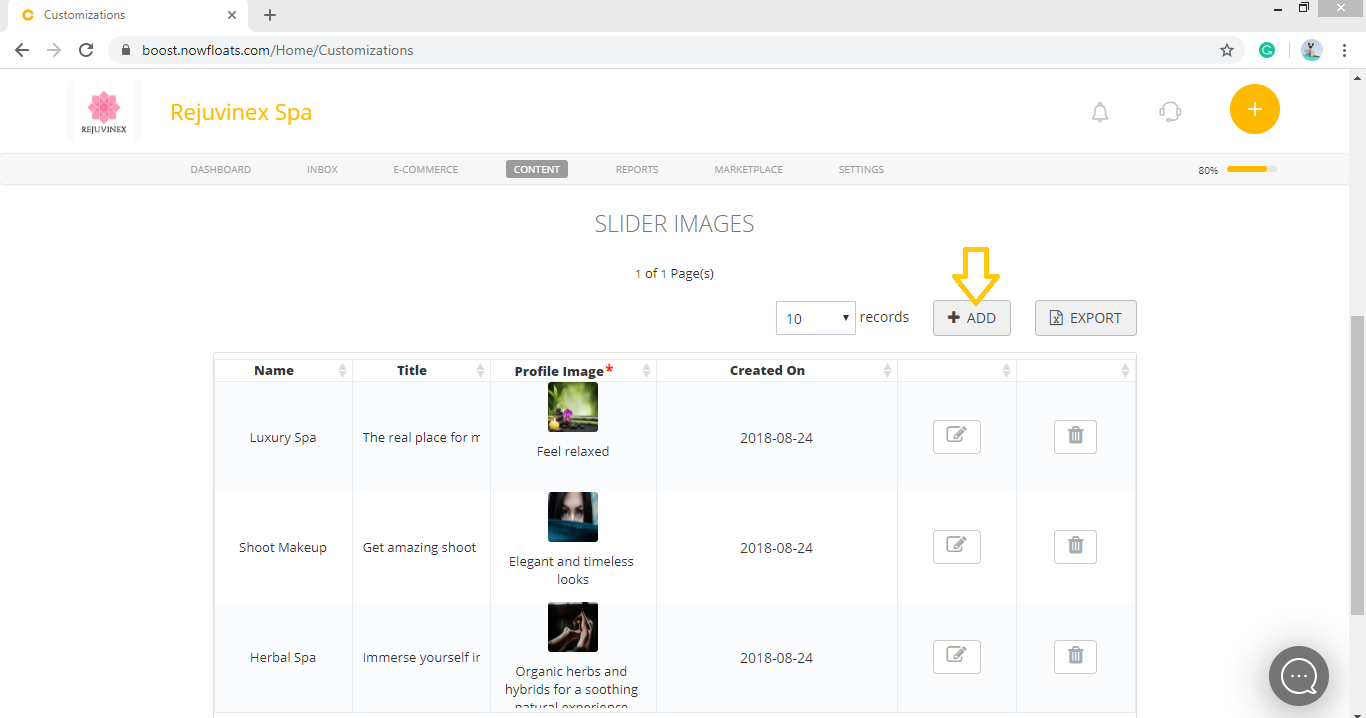
6. Click +ADD.
7. In the Name box, enter the name of the slider image.
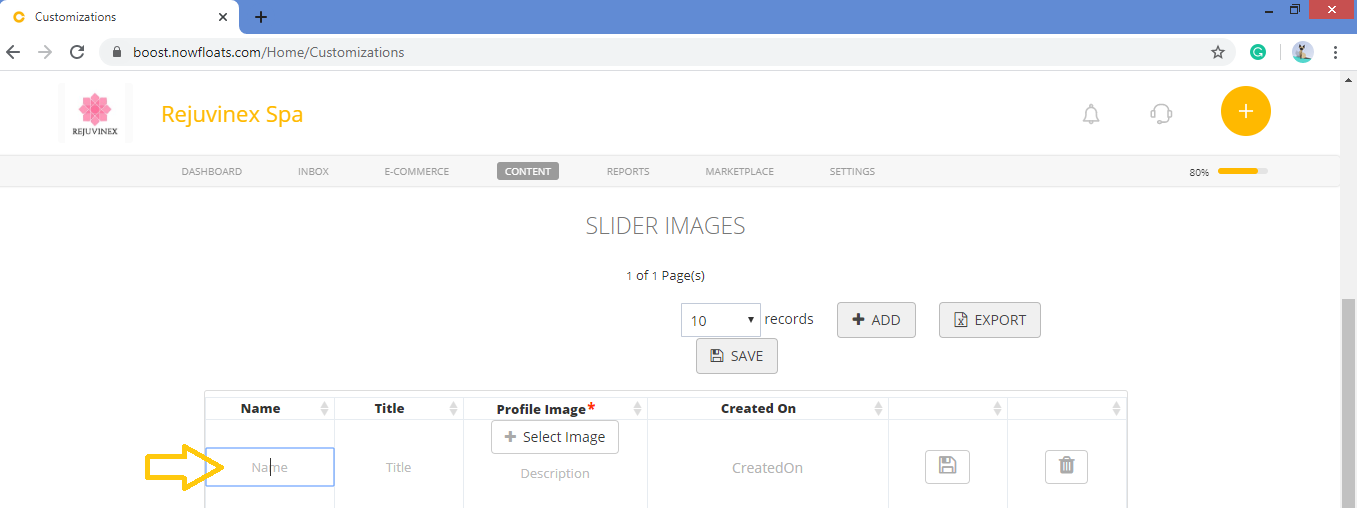
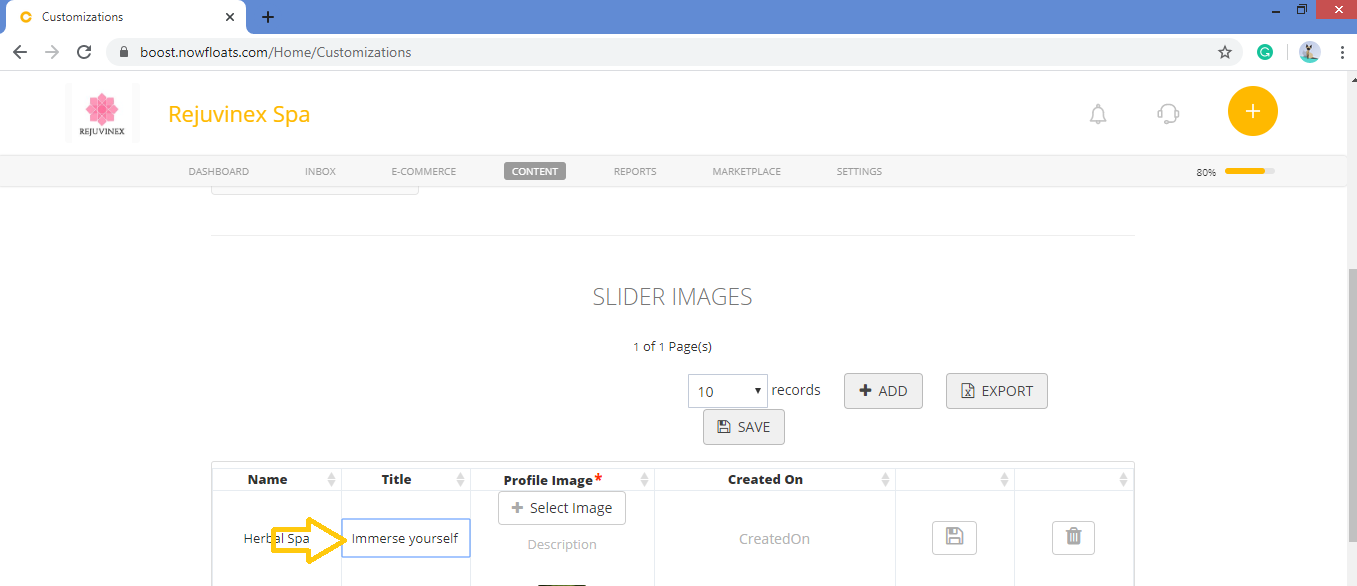
8. In the Title box, enter the title of the slider image.
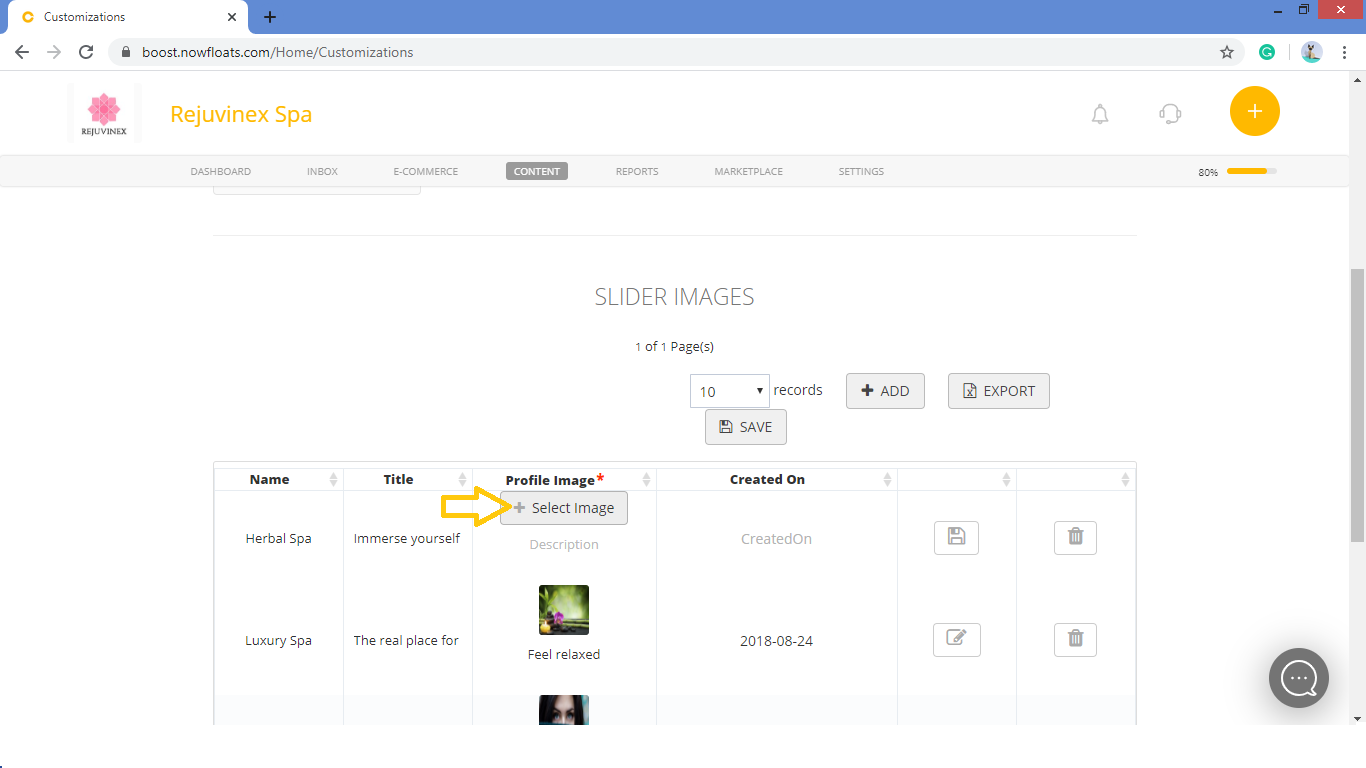
9. Click +Select Image to add slider image from desktop.
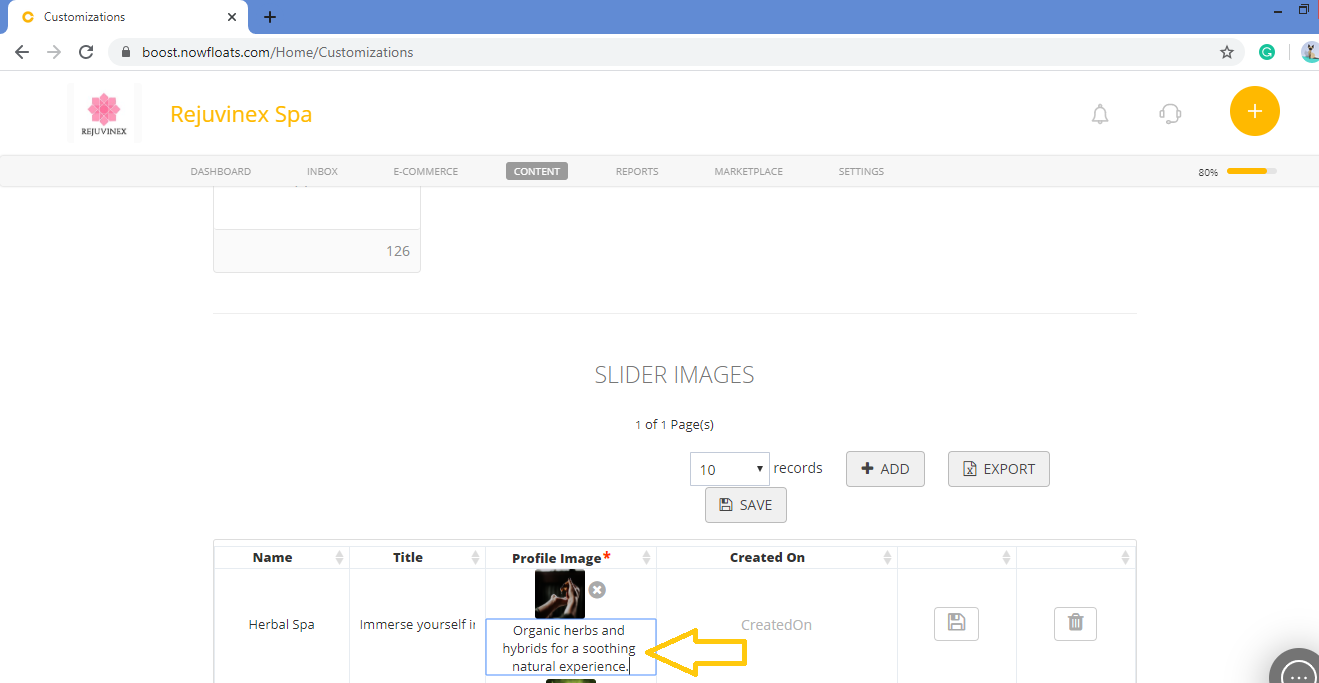
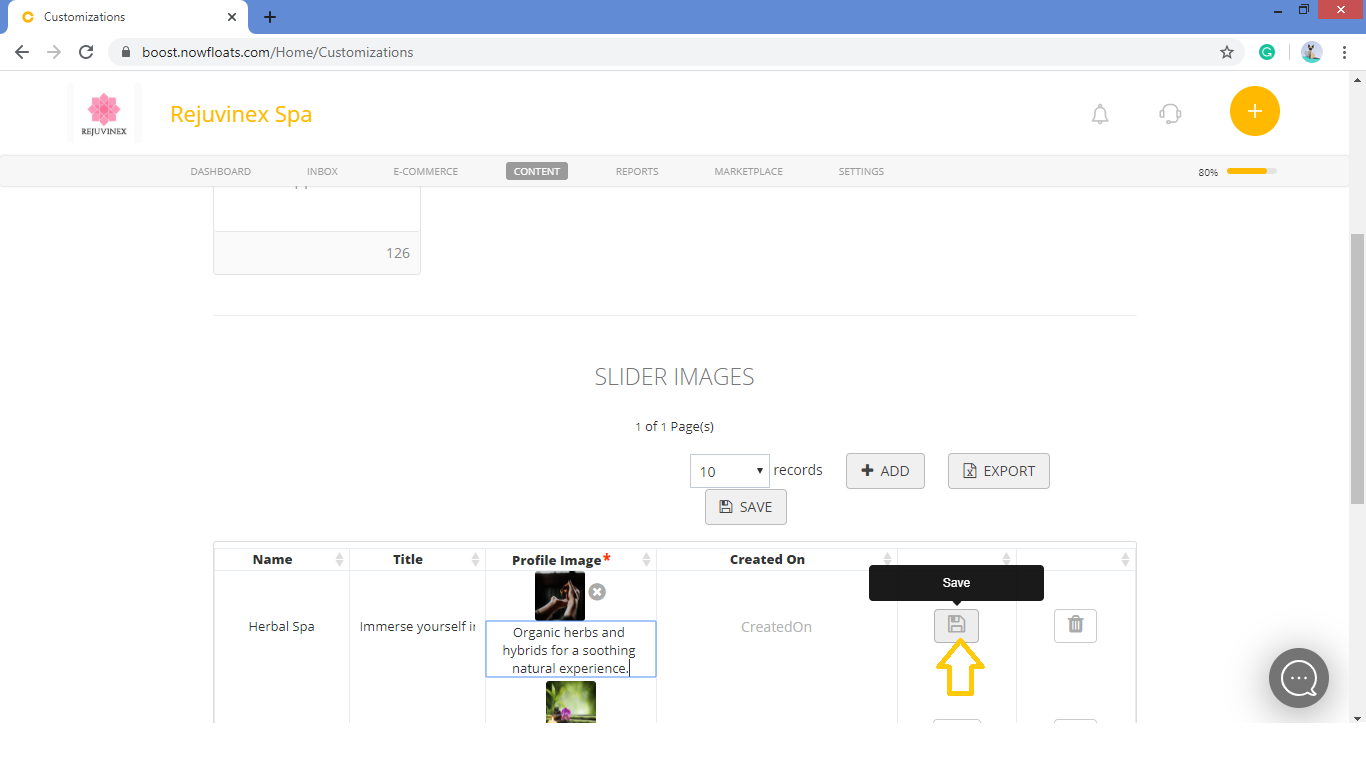
10. In the Description box, enter the description about slider image.
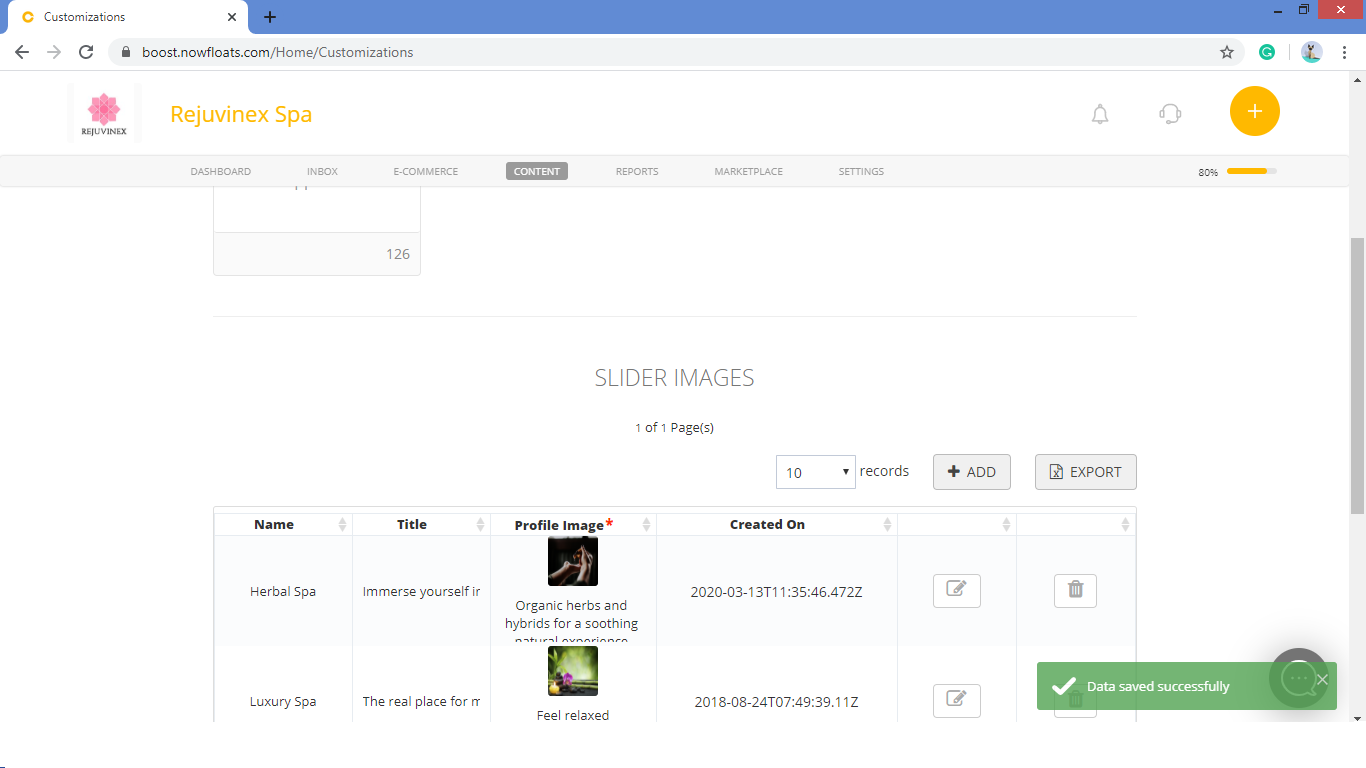
11. Once the desired image is selected, click Save icon  .
.
Comments
0 comments
Please sign in to leave a comment.