
To Add Doctor Profile to your website:
Note: To Add doctor, you should add minimum one service in your service gallery.If not click here to learn how to add service to your boost website.
1. Go to your dashboard.
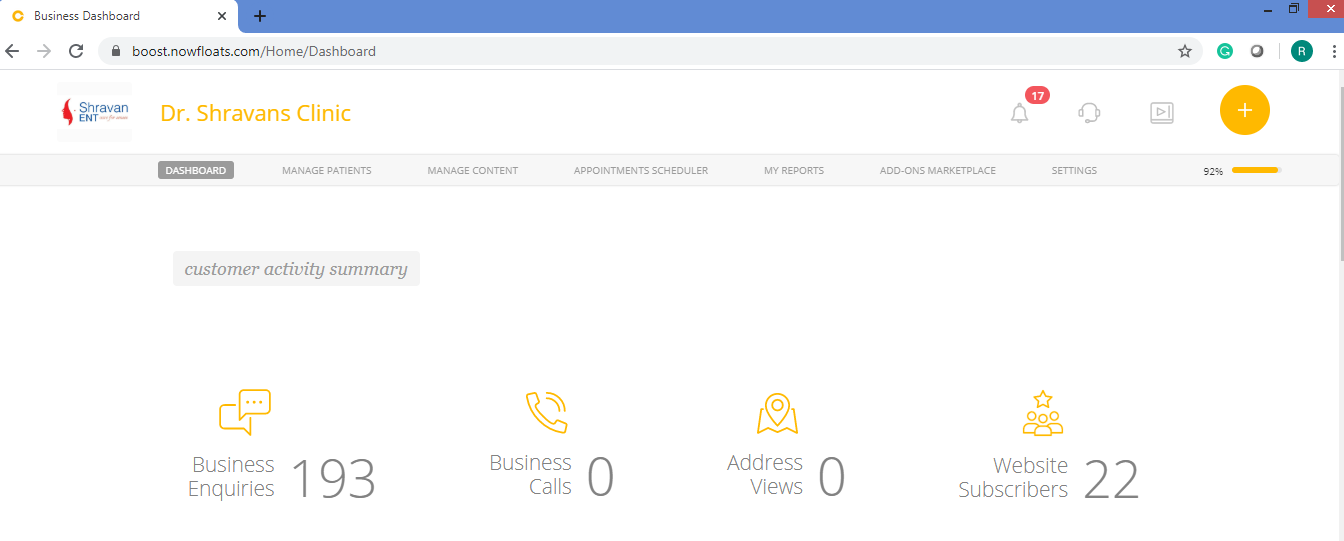
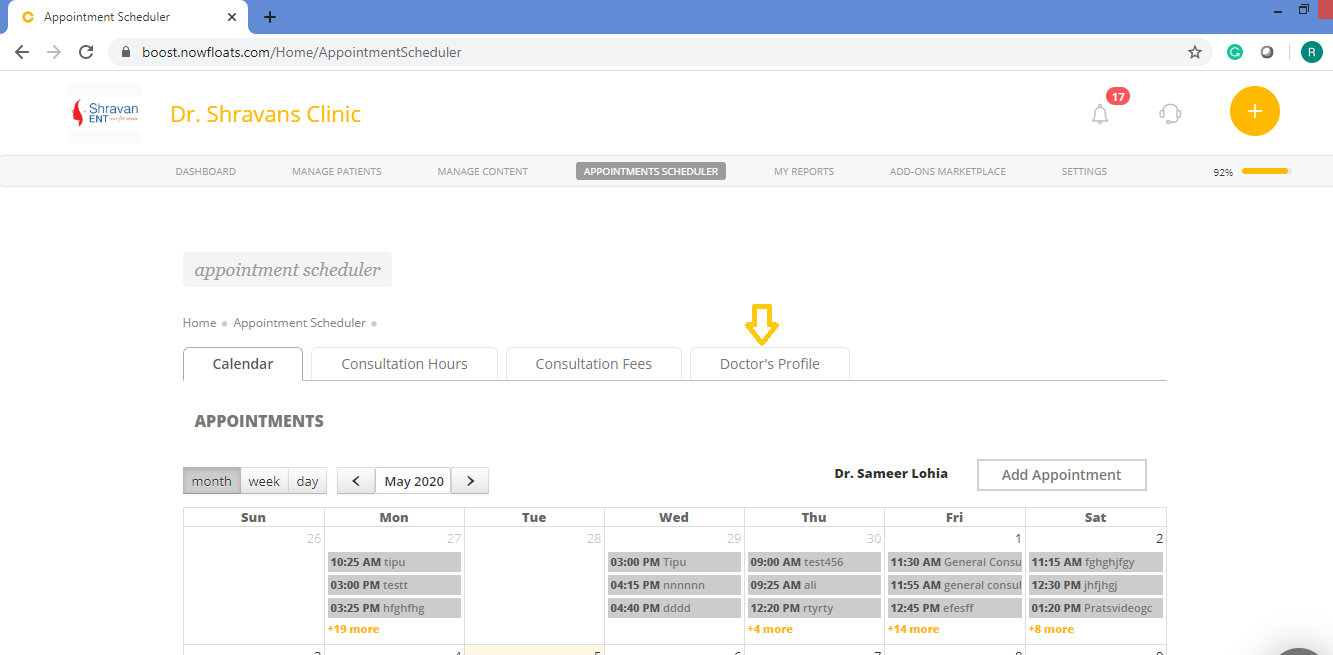
2. Click on Appointments Scheduler in the header menu.

3. Click on Doctor's Profile tab.
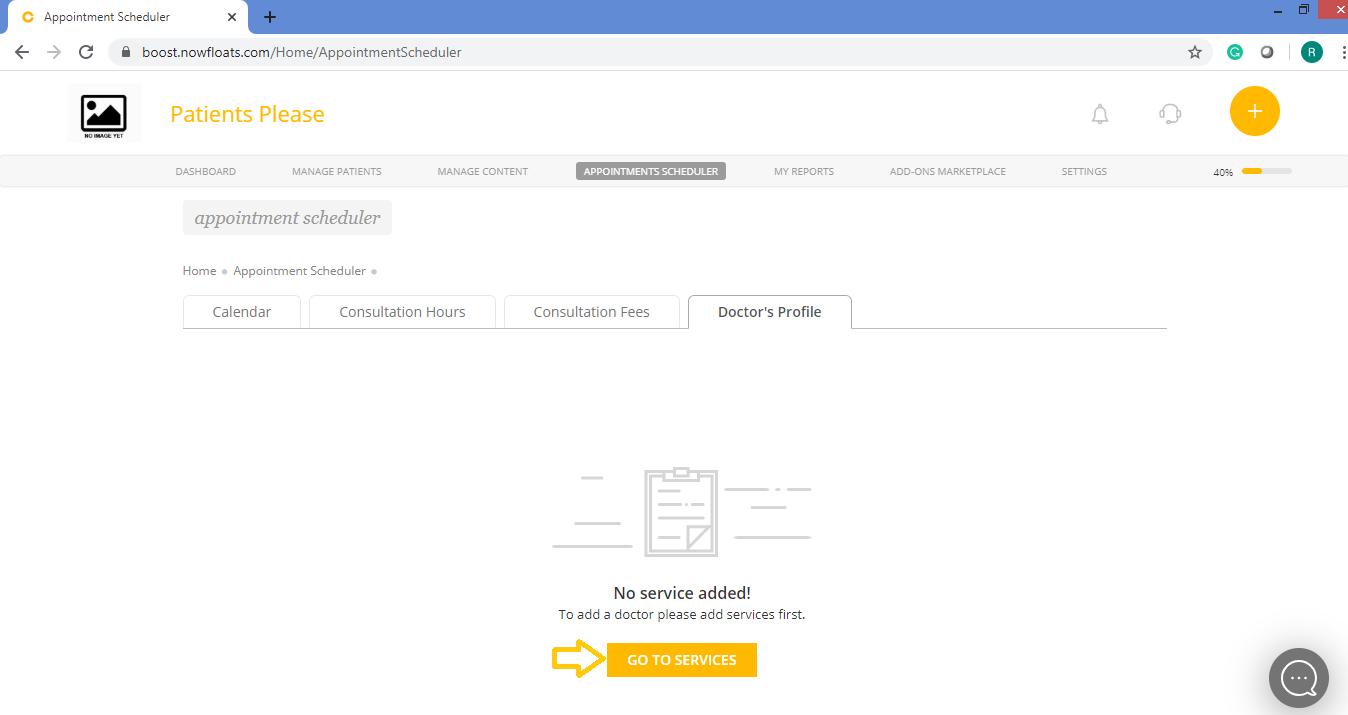
If you have not added services in your gallery then click Go To Services redirect you to service gallery.
Click here to learn how to product/service to your boost website.
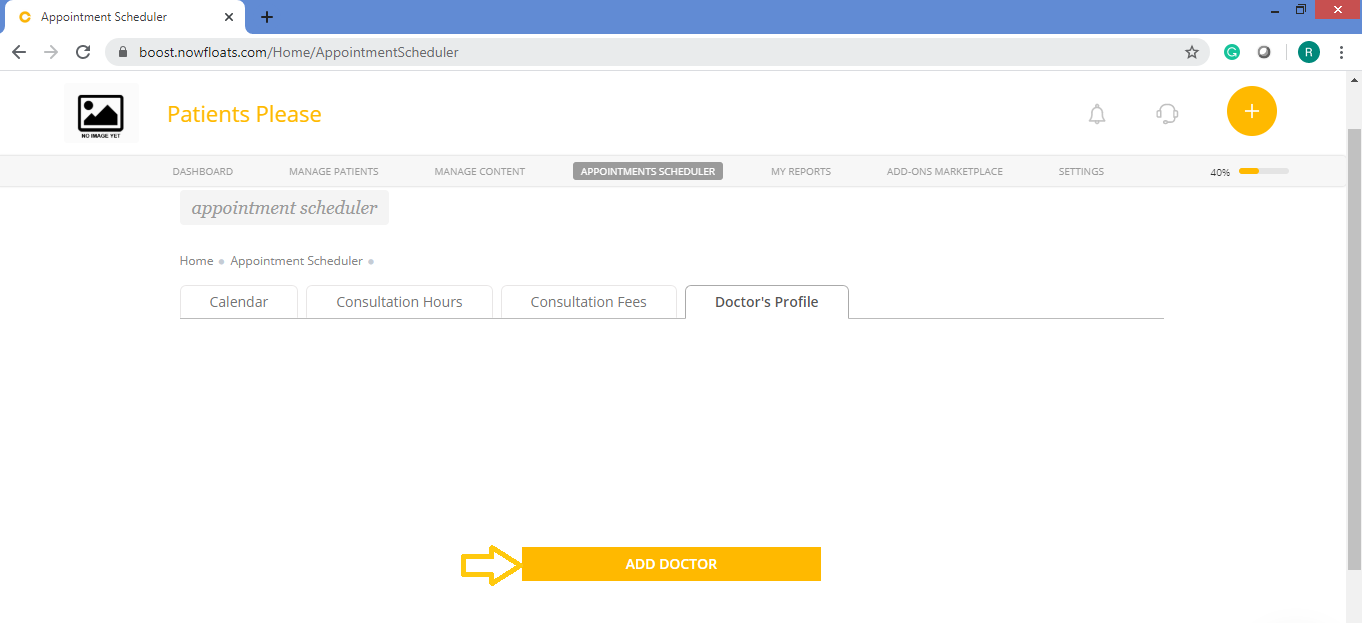
Once the service is added then you can able to add doctor your website.
4. Click Add Doctor.
5. Click Upload Image to browse an image of the doctor from your computer.
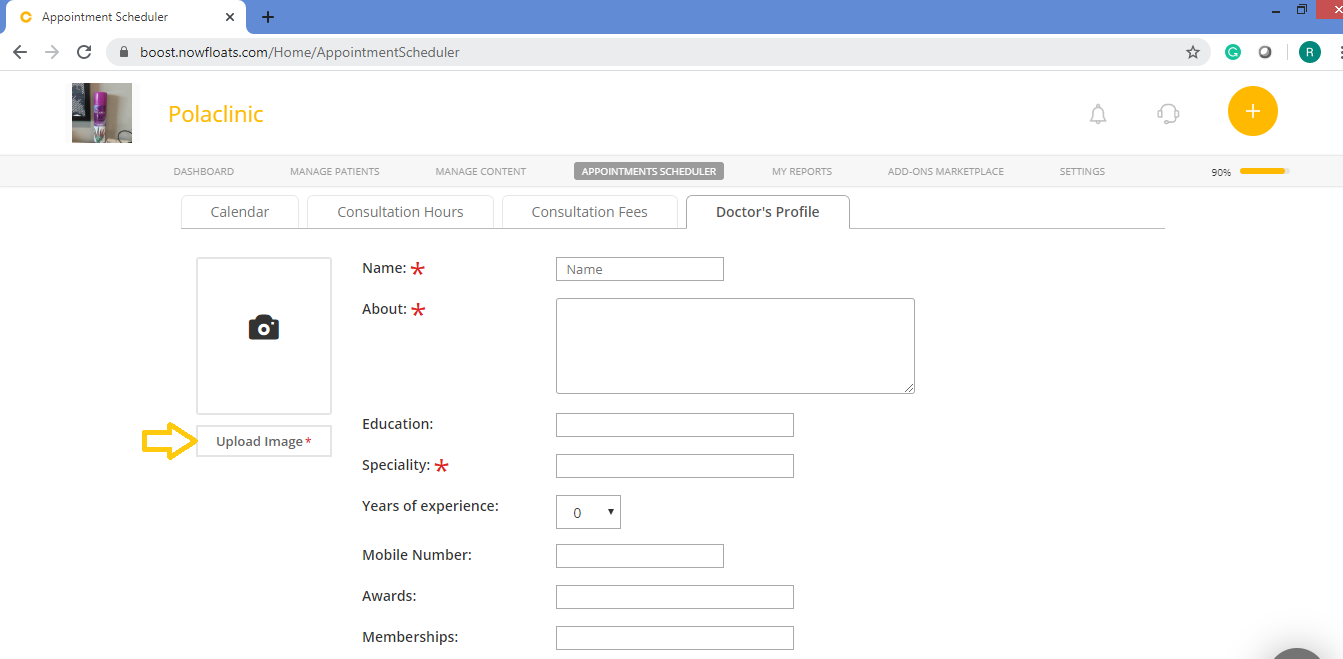
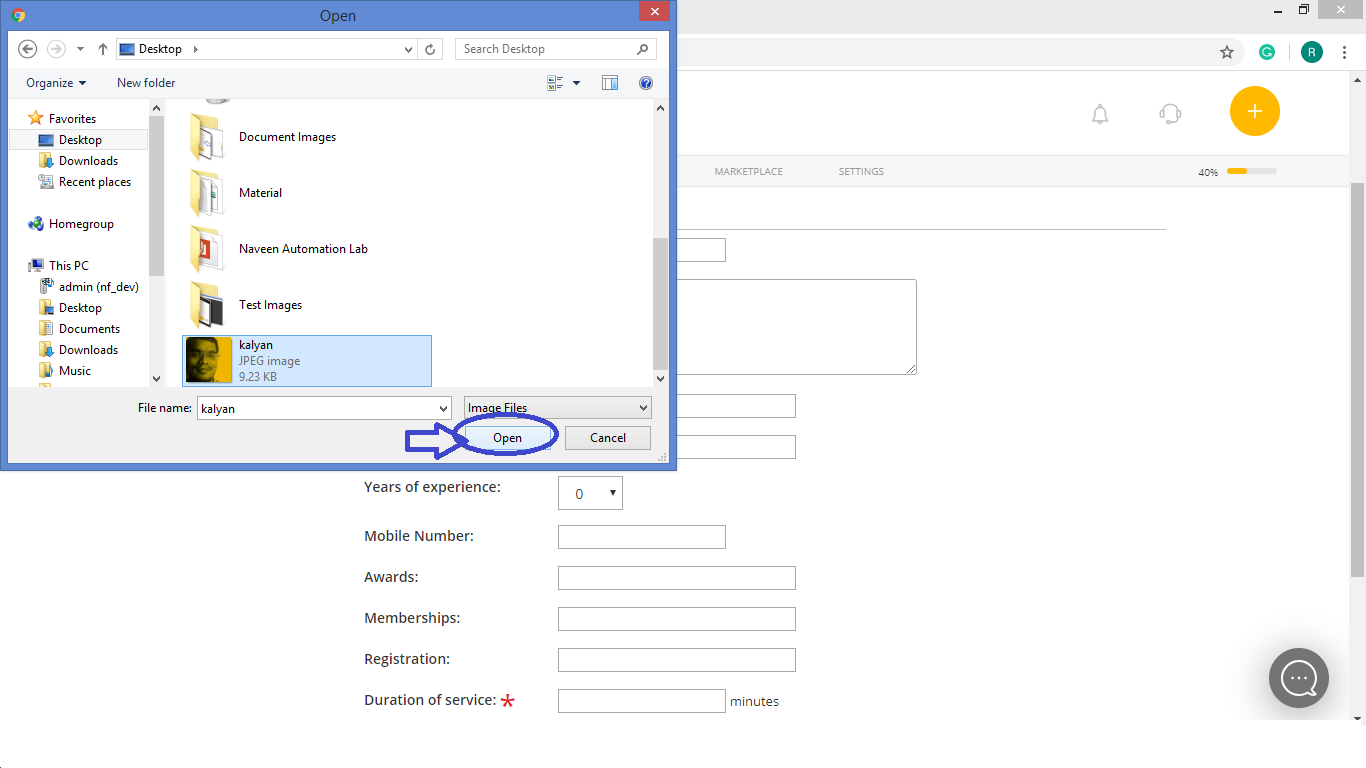
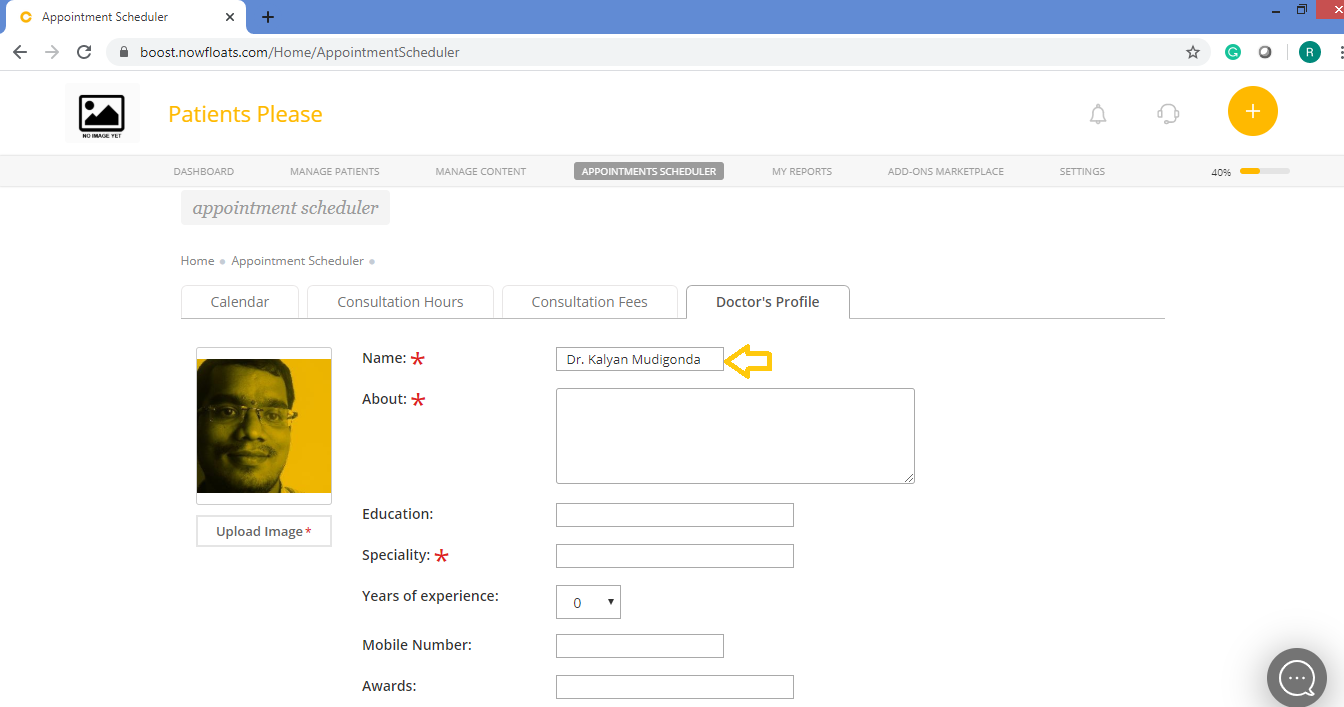
6. In the Name box, enter name of the doctor.
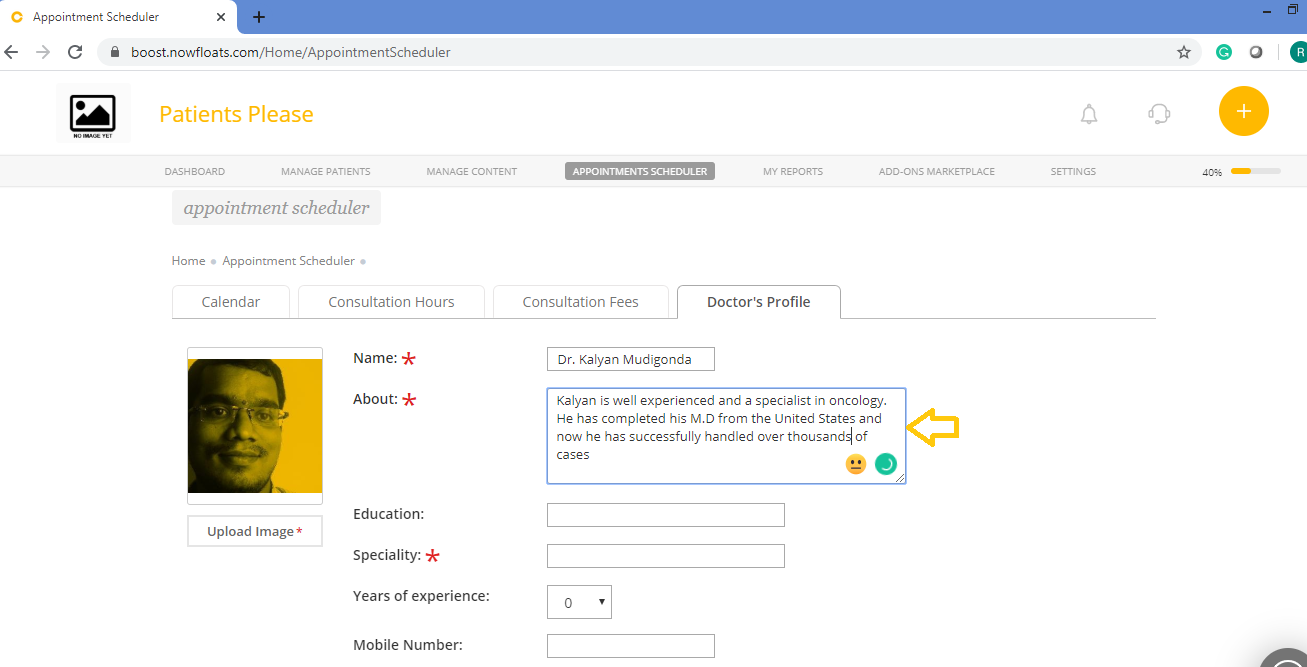
7. In the About box, enter the brief description about doctor.
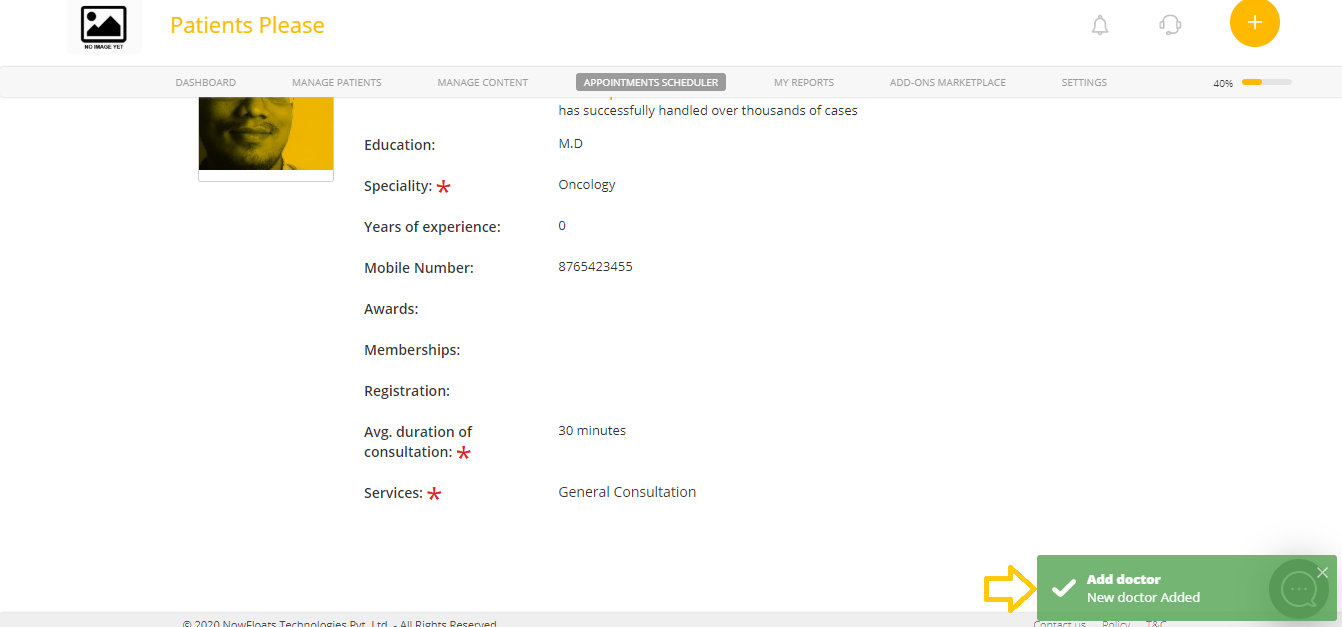
8. In the Education box, enter the highest degree of the doctor.
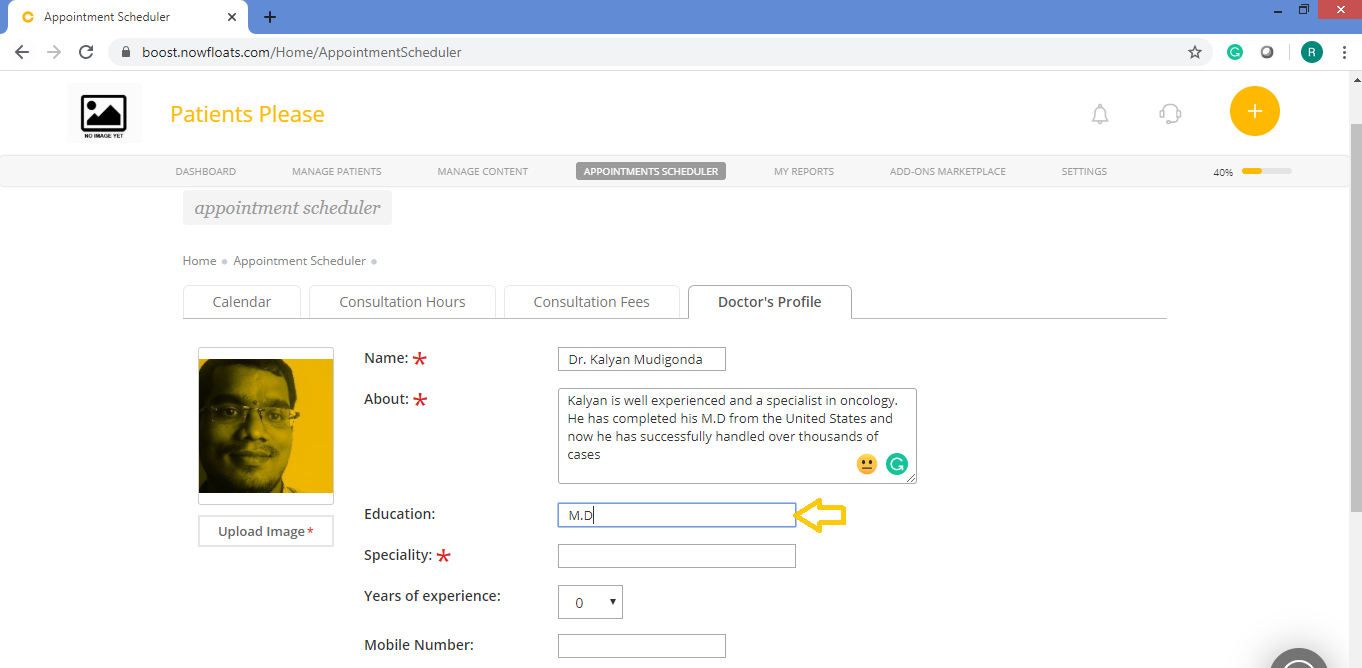
9. In the Specialty field, enter the specialist field of the doctor.
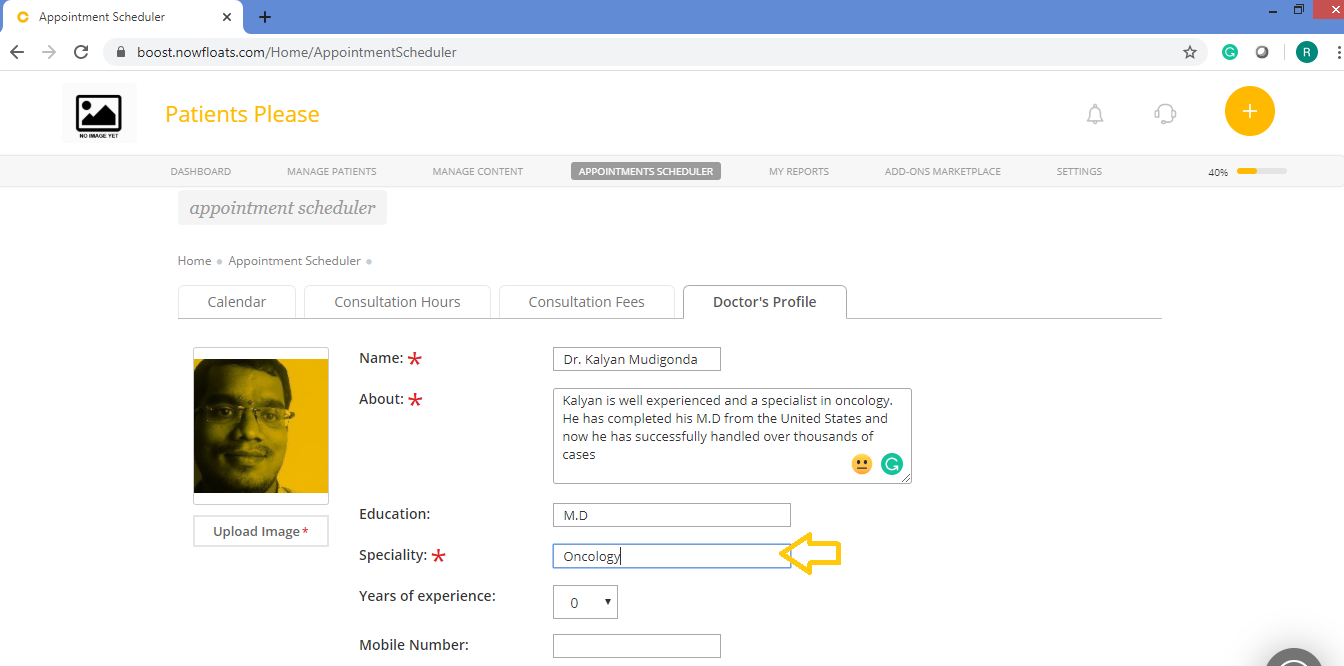
10. In the Business License box, enter your license number.
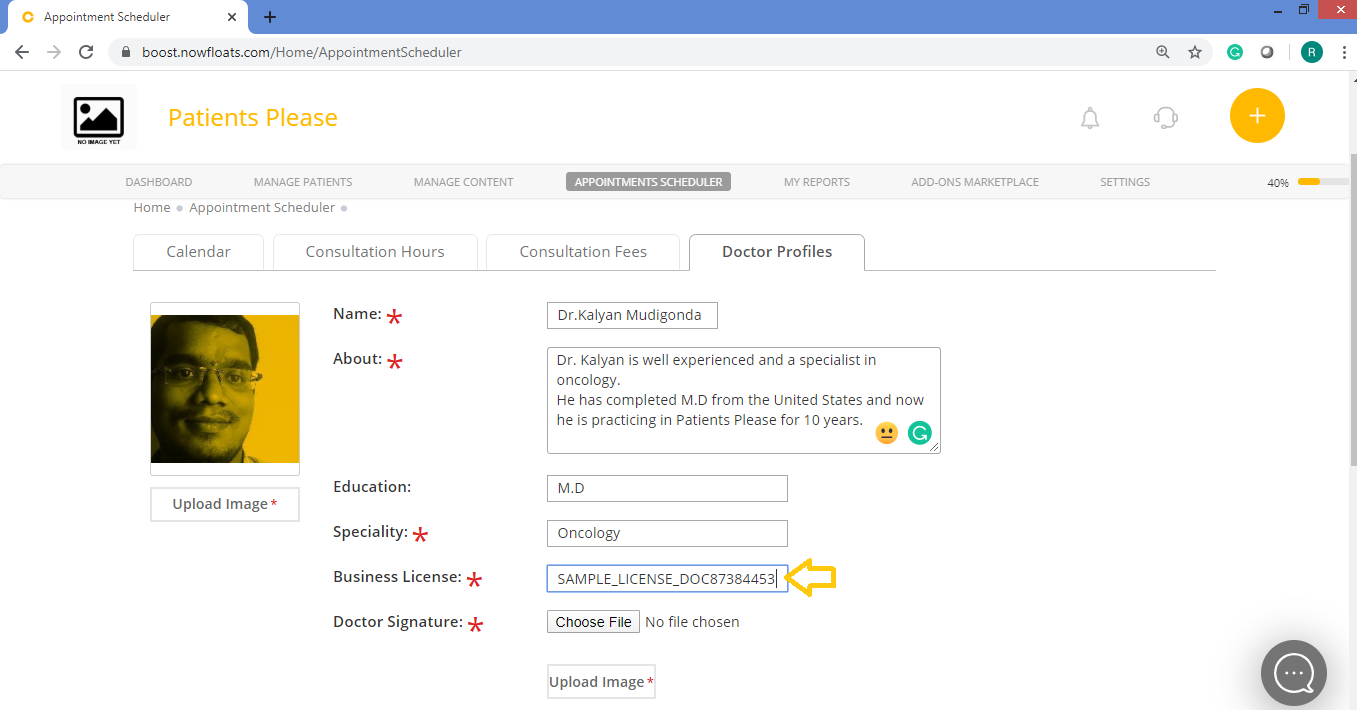
11. Click Choose File or Upload Image to browse to doctors signature image from computer.
Note: Keep the background white or transparent (in png).For best results use a minimum 100 X 100 pixel image in .jpeg or .png format
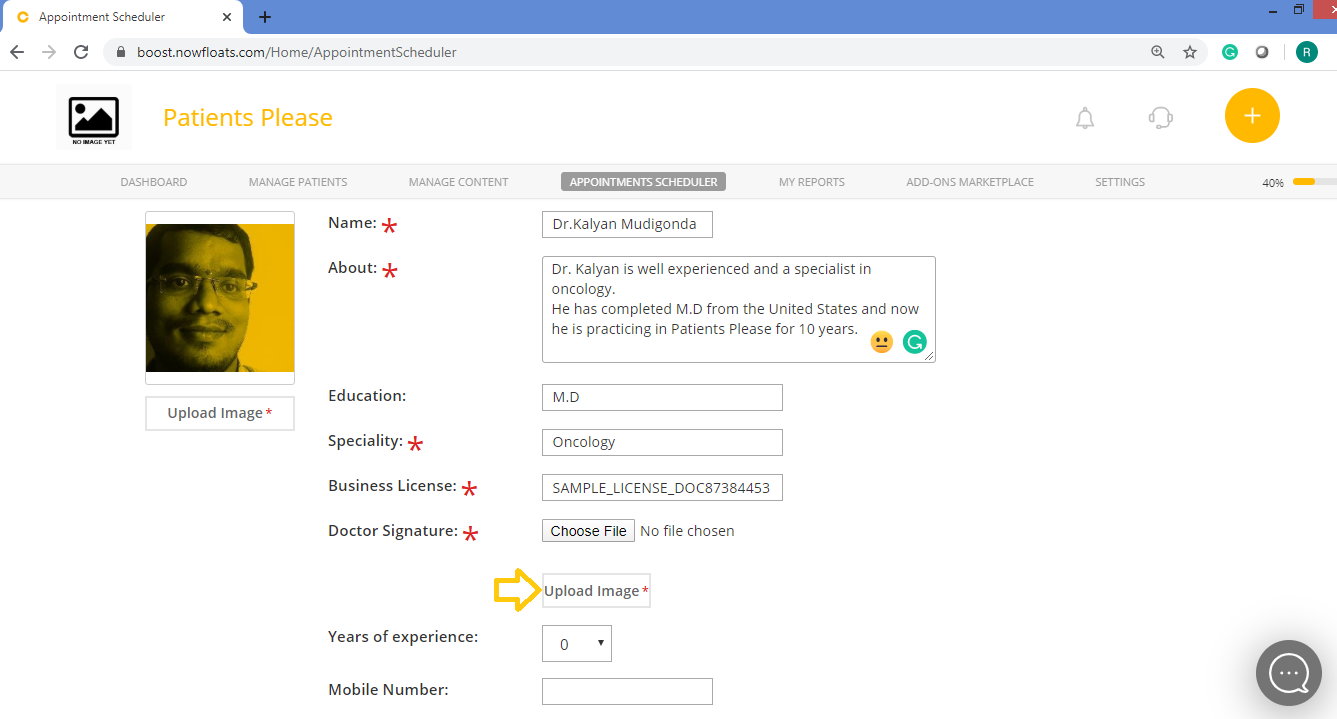
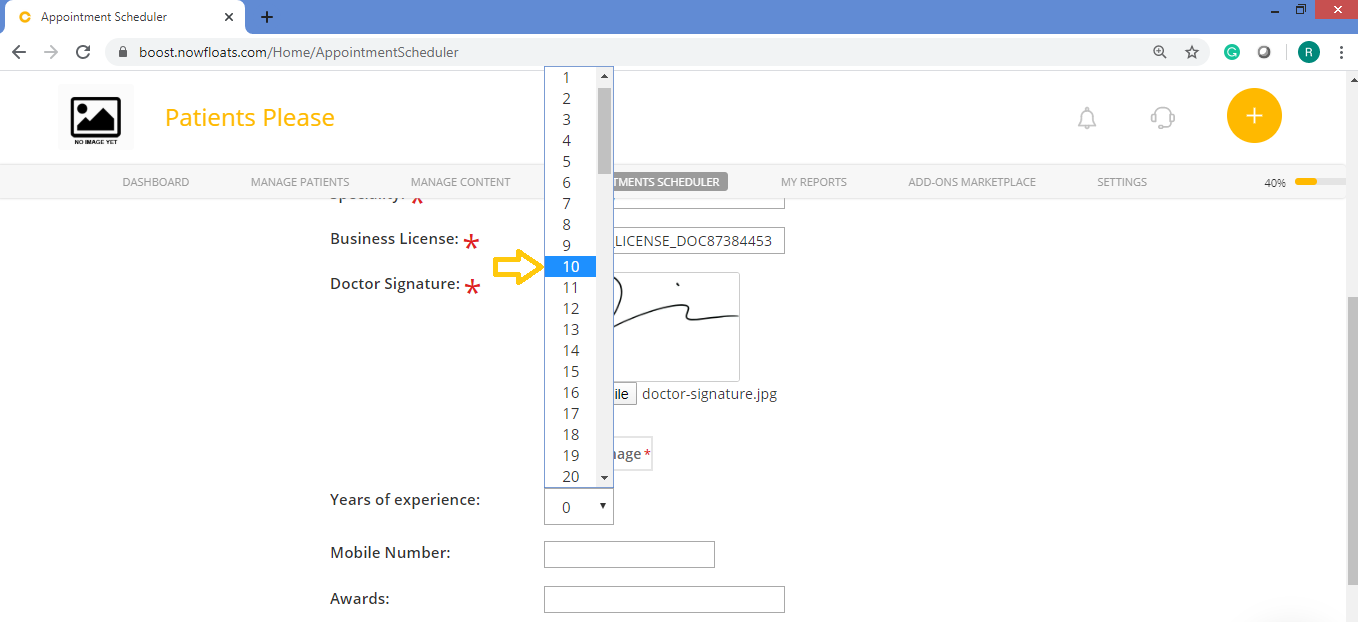
12. Select Years Of Experience from drop down.
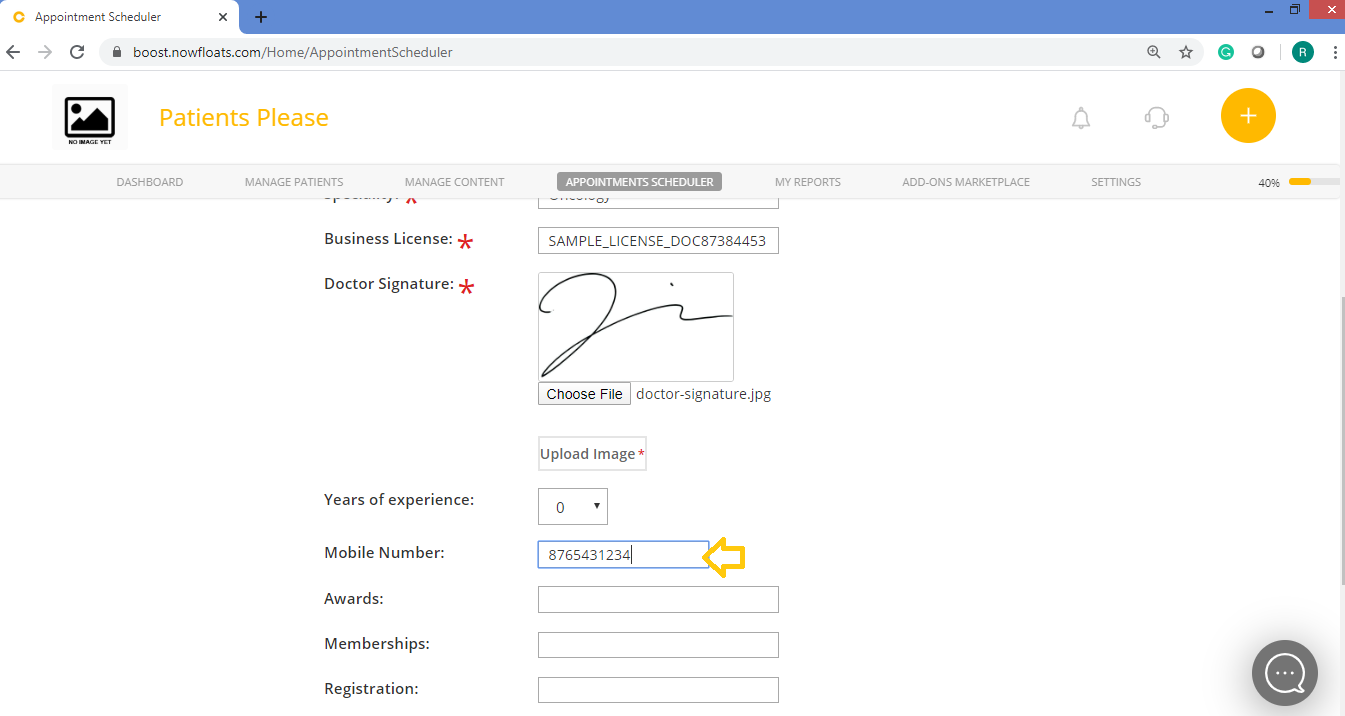
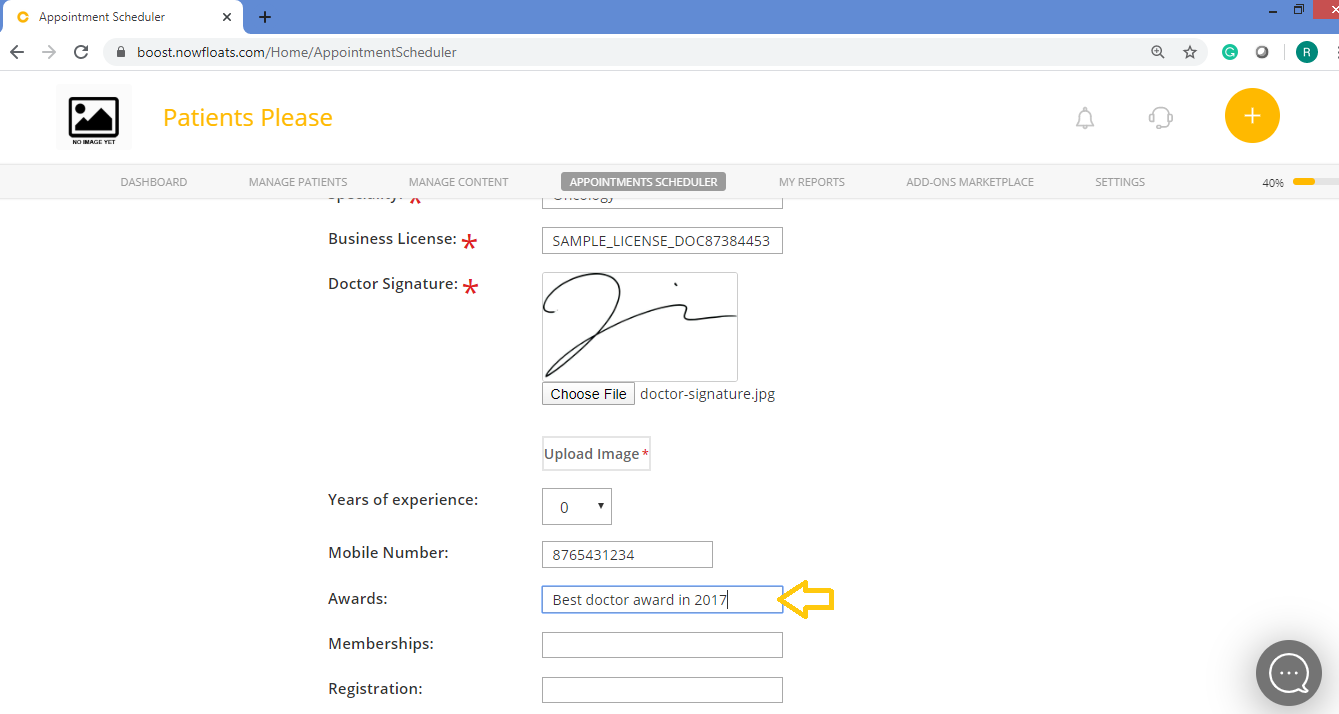
13. Enter Mobile Number, Awards, Memberships , Registration of the doctor in the given field.These fields are non mandatory.
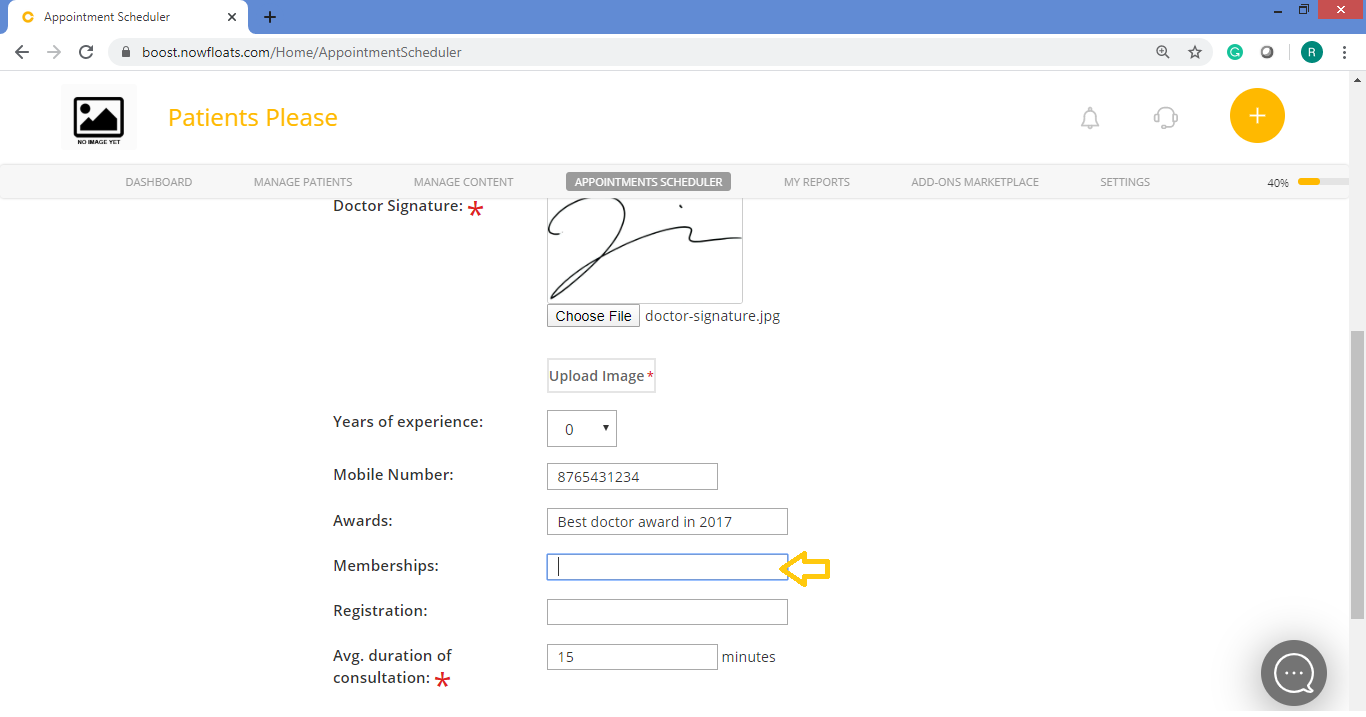
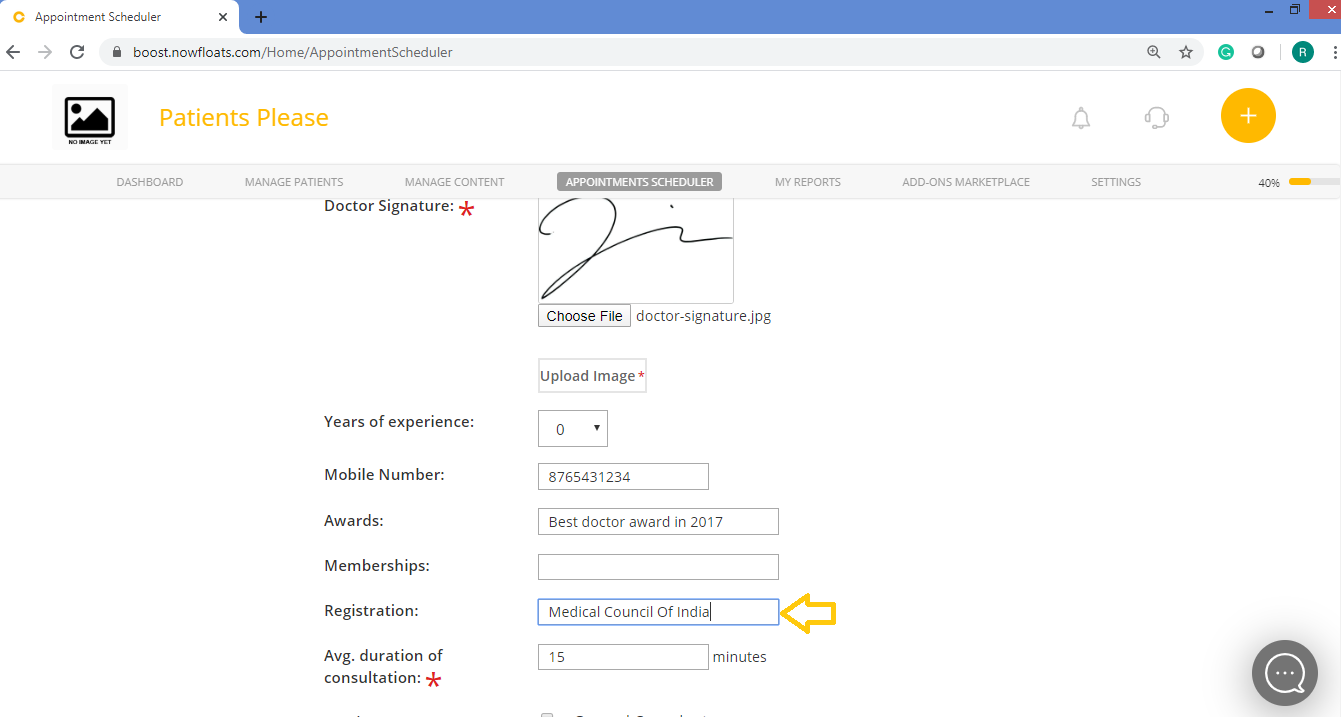
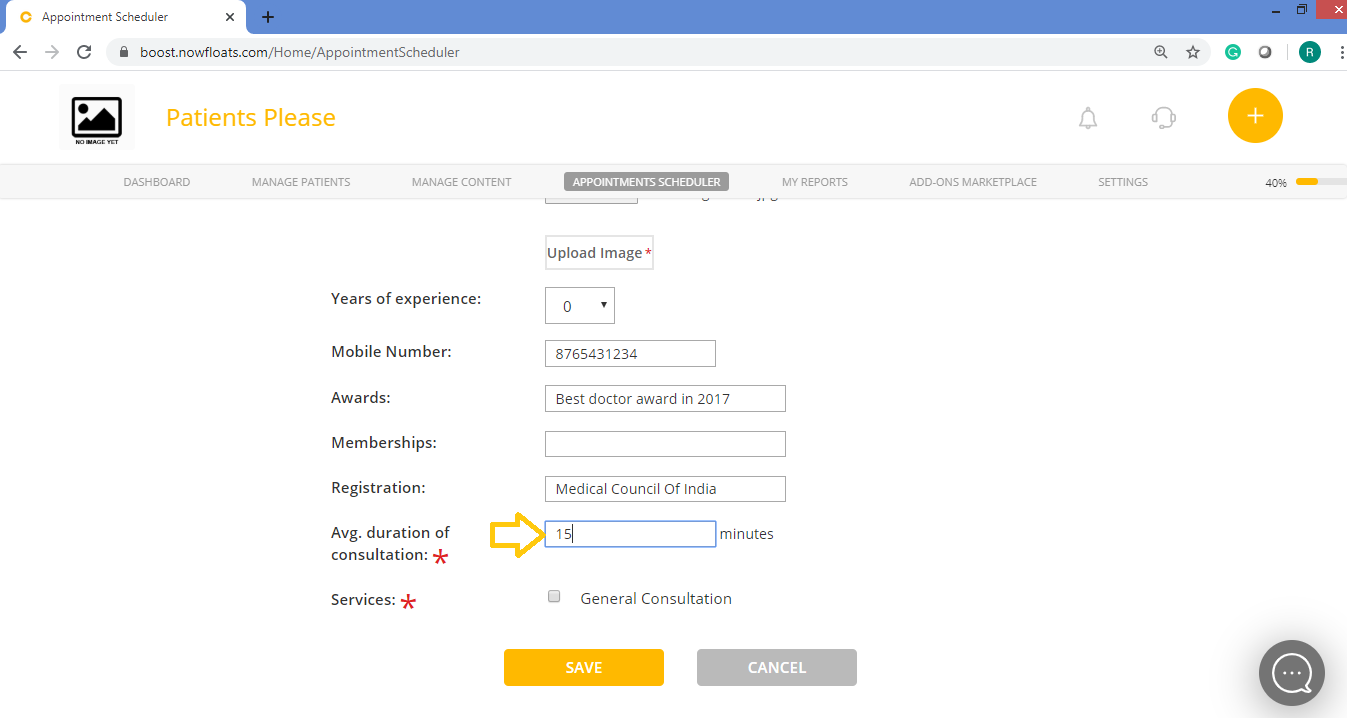
14. In the Duration of Service box, enter the timing in minutes for the appointment slot.
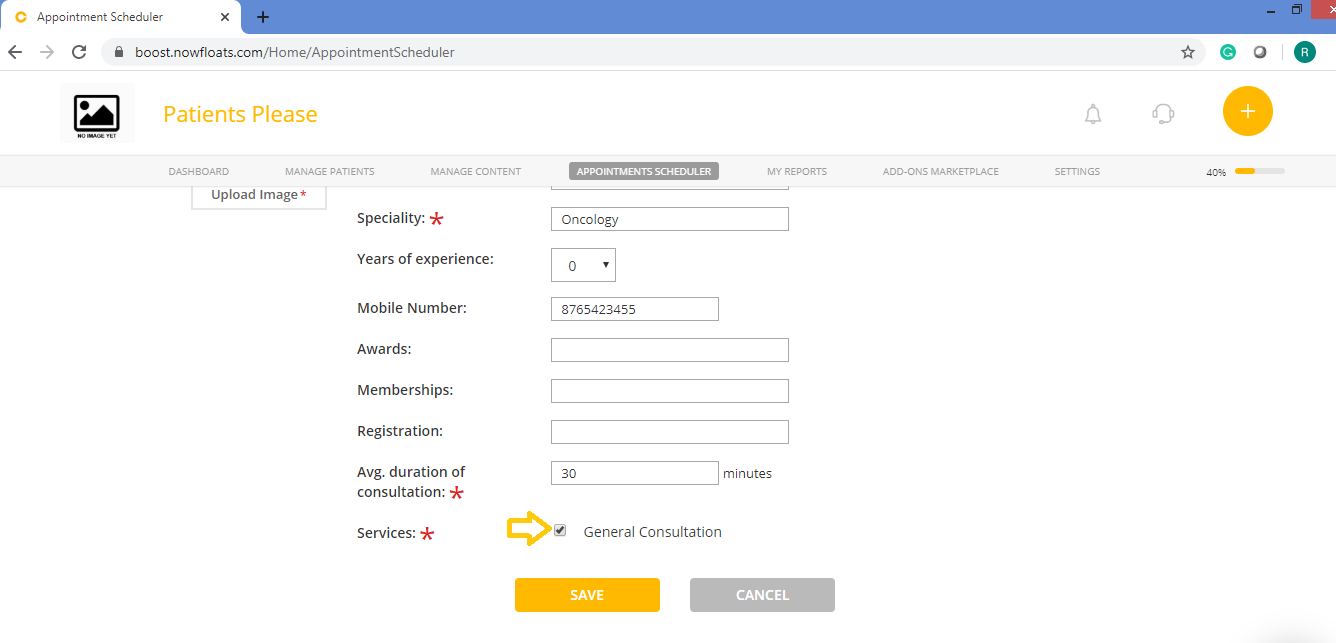
13. Select Checkbox in the services.
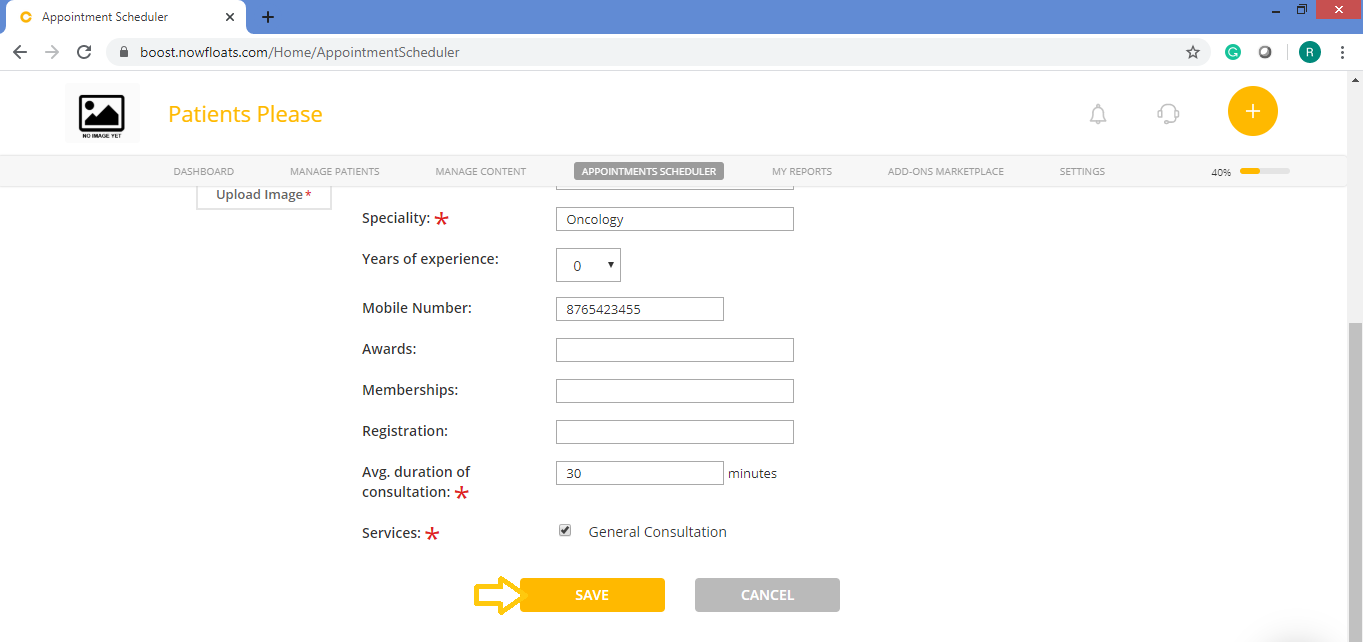
14. Click Save.
Comments
0 comments
Please sign in to leave a comment.