
To Add Product/Service to your website:
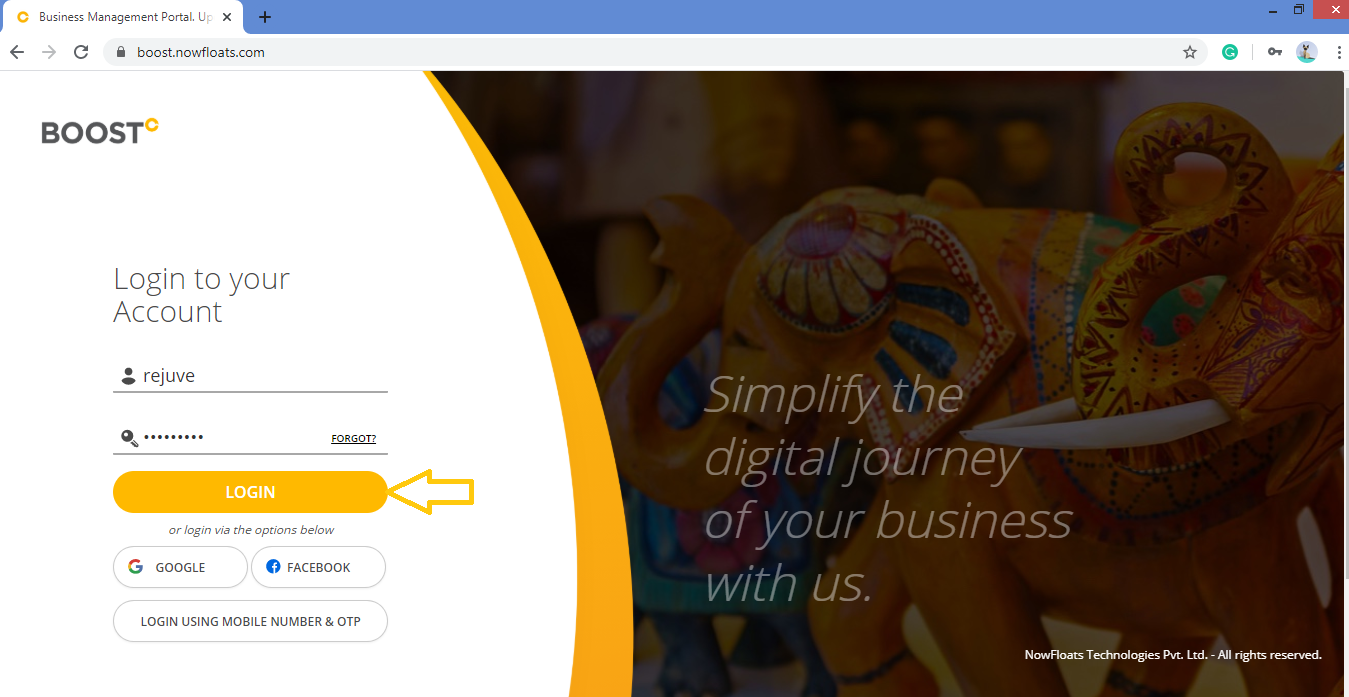
1. Go to Boost Login Page to login to Boost Web.

2. Enter your Username, Password and click Login.
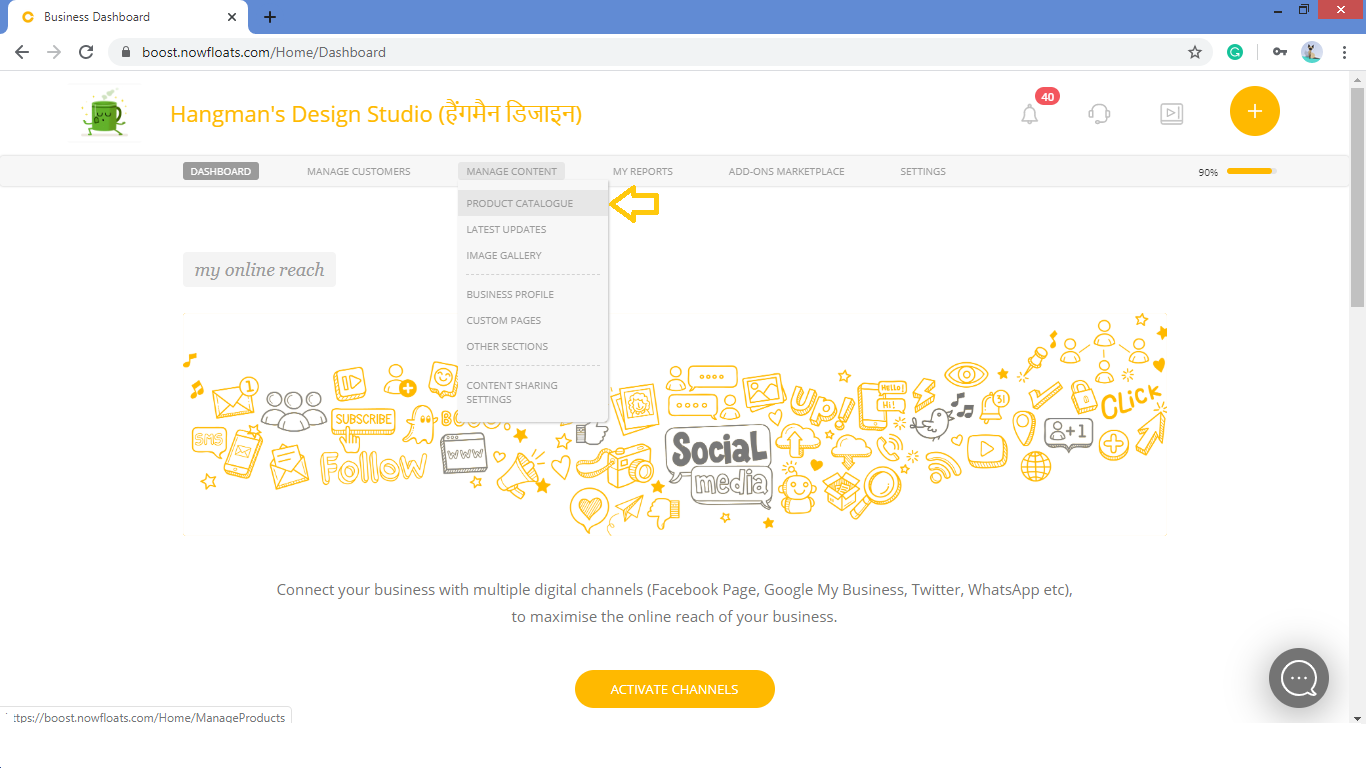
3. As soon as you log in, you can see the dashboard from where the entire business site can be managed.Go to Manage Content in the header menu and click Product Catalogue.
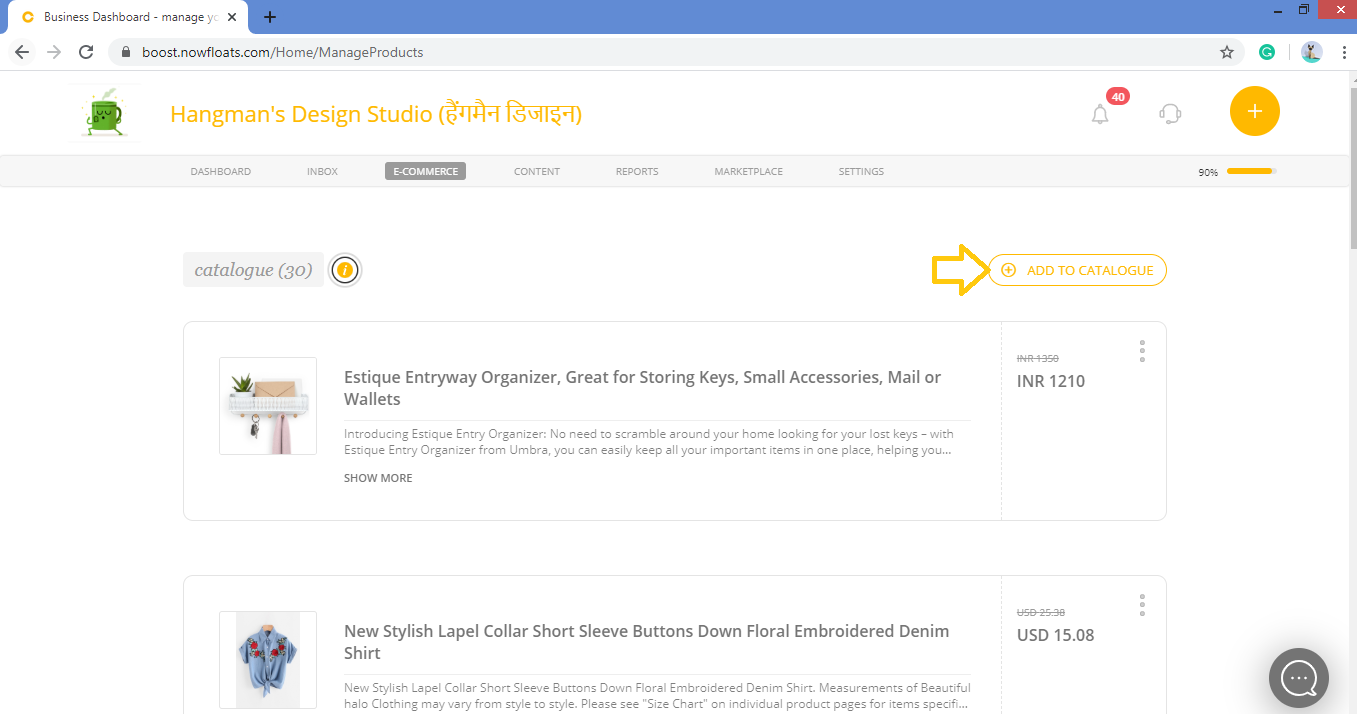
4. Click Add to Catalogue.
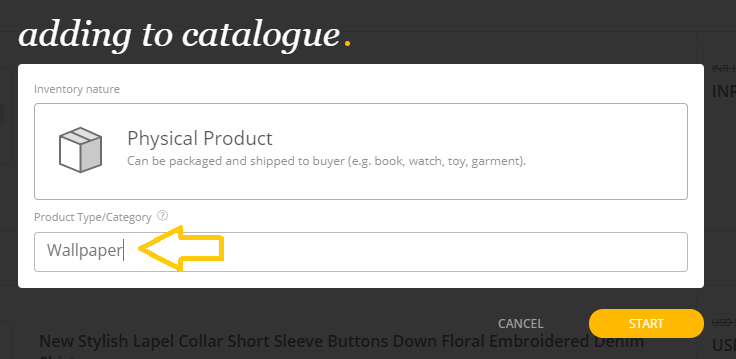
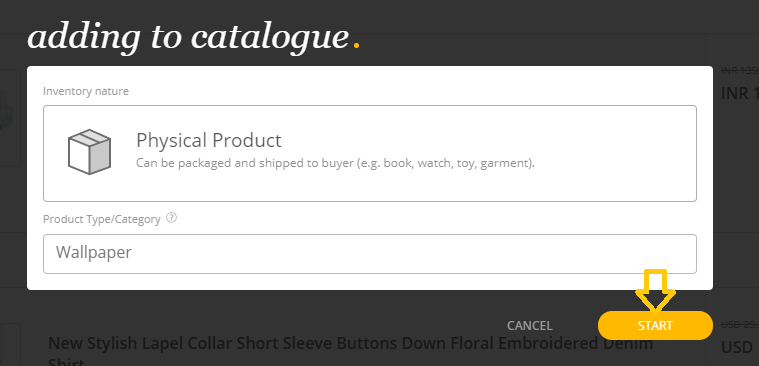
5. Enter the Category of your Product/Service and Click Start.
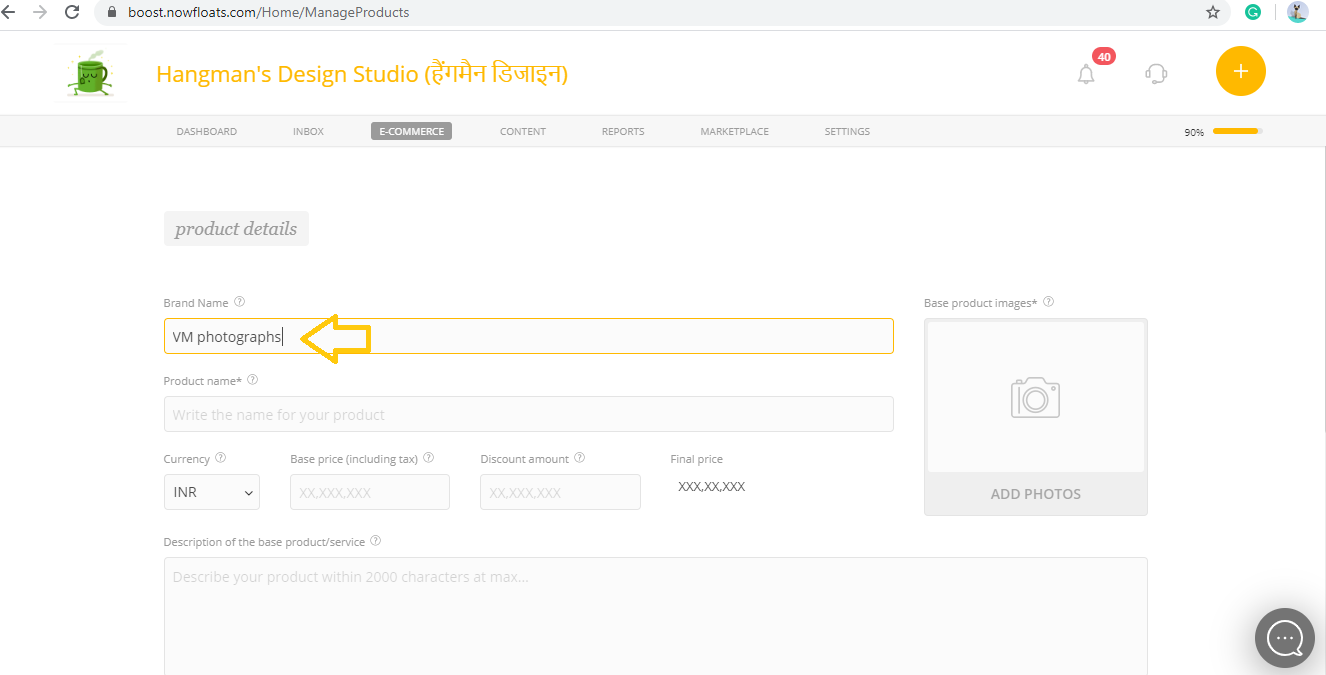
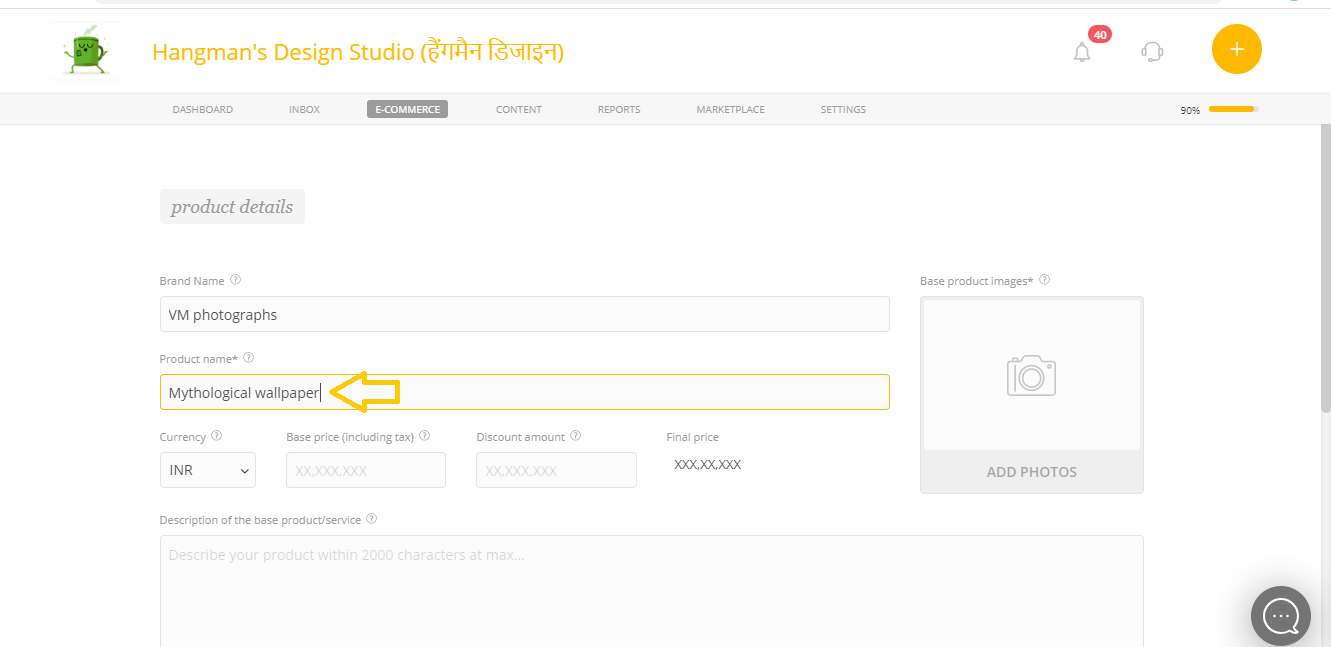
6. Enter the Brand name and Product name.
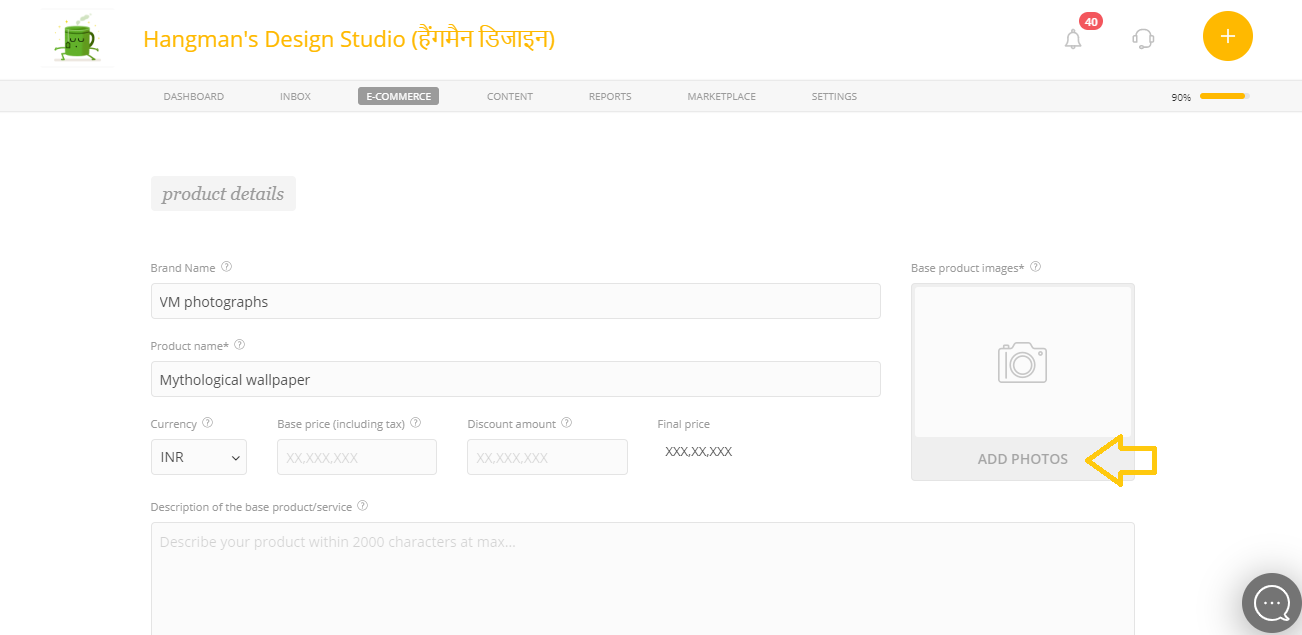
7. Click Add Photos.
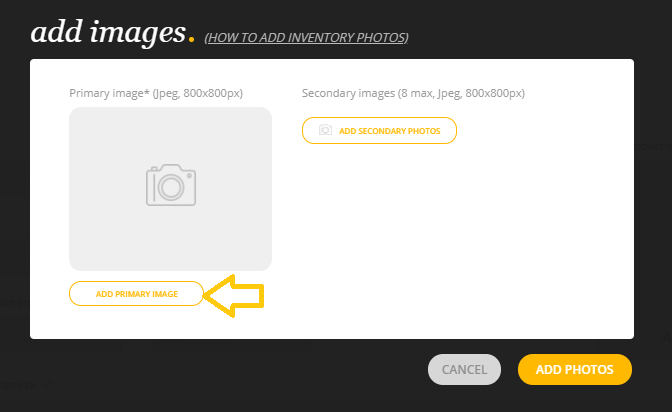
8. Click Add Primary Image.
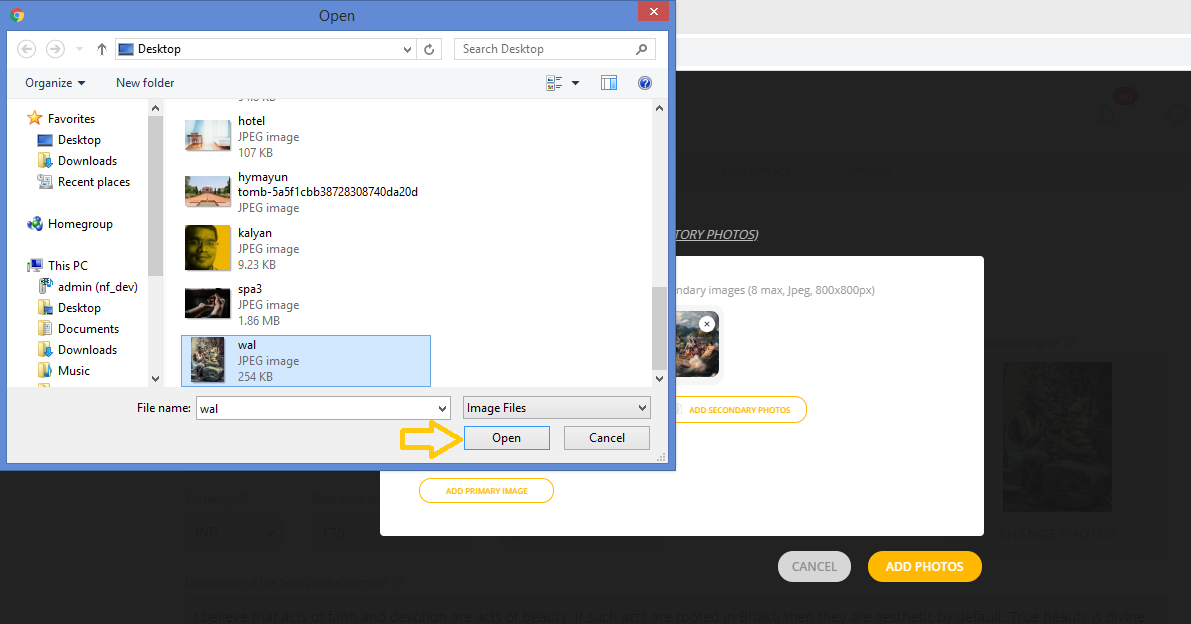
9. Select the image you want to upload from the desktop.
Note: For best results use a 800 X 800 pixel image in .jpeg and .png format of size below 800KB.
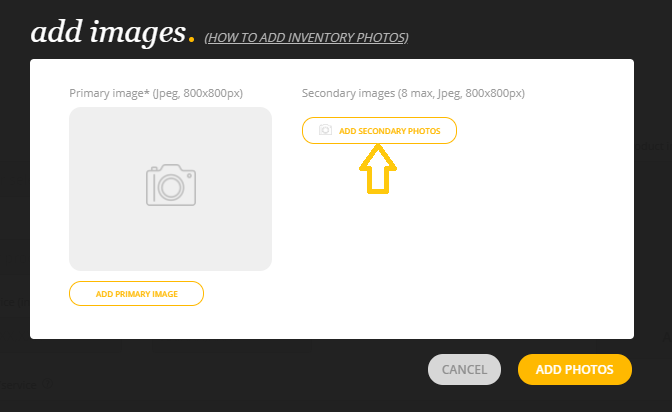
10. Click Add Secondary Photos.
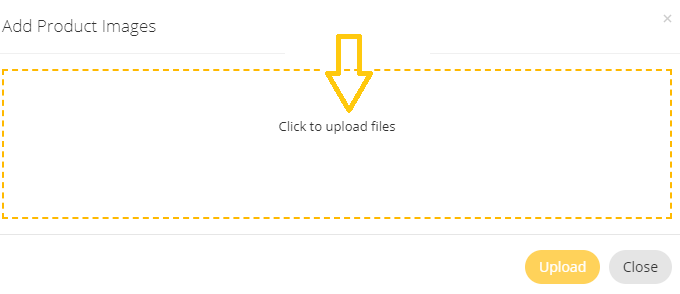
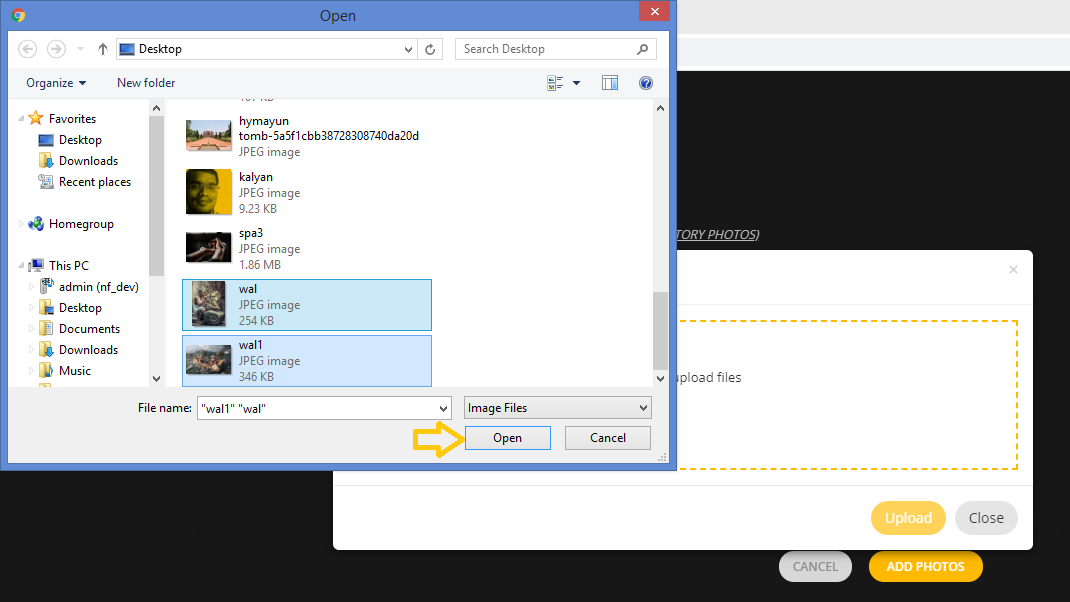
11. Click Click to Upload files to select the images you want to upload from the desktop.
12. Select the images you want to upload from the desktop.
Note: For best results use a 800 X 800 pixel image in .jpeg and .png format of size below 800KB. Maximum 8 images are allowed to Upload in this section.
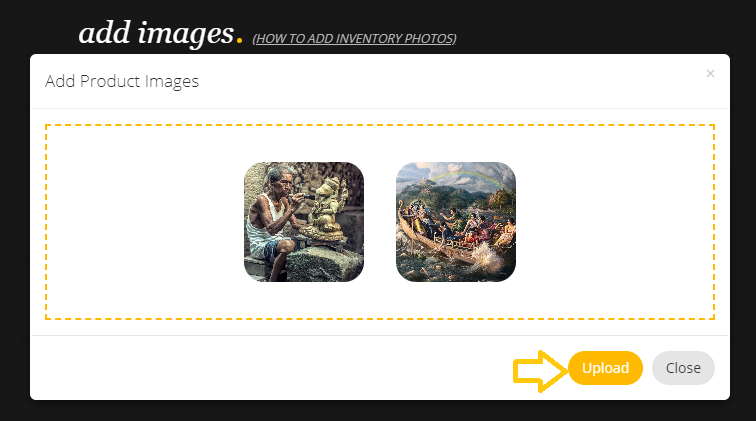
13. Click Upload.
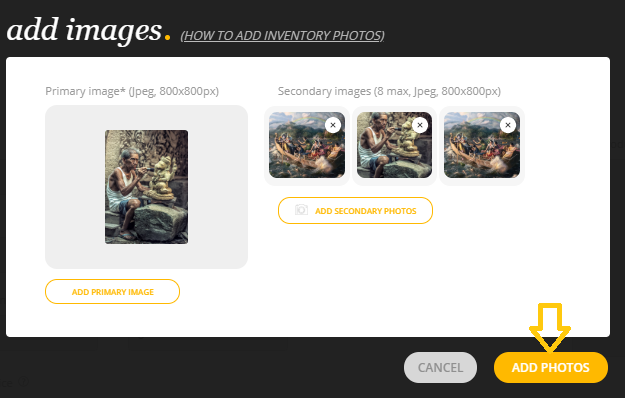
14. Click Add Photos.
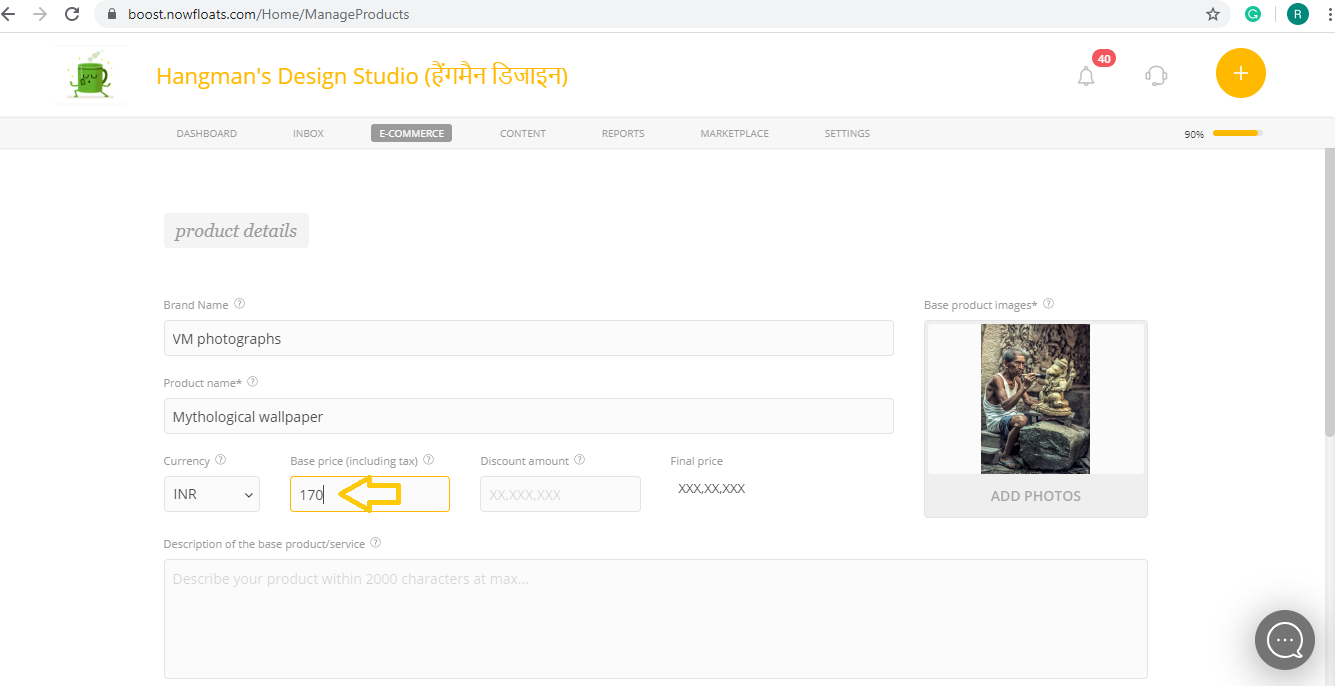
15. Enter product Base Price and Enter Discount Amount.
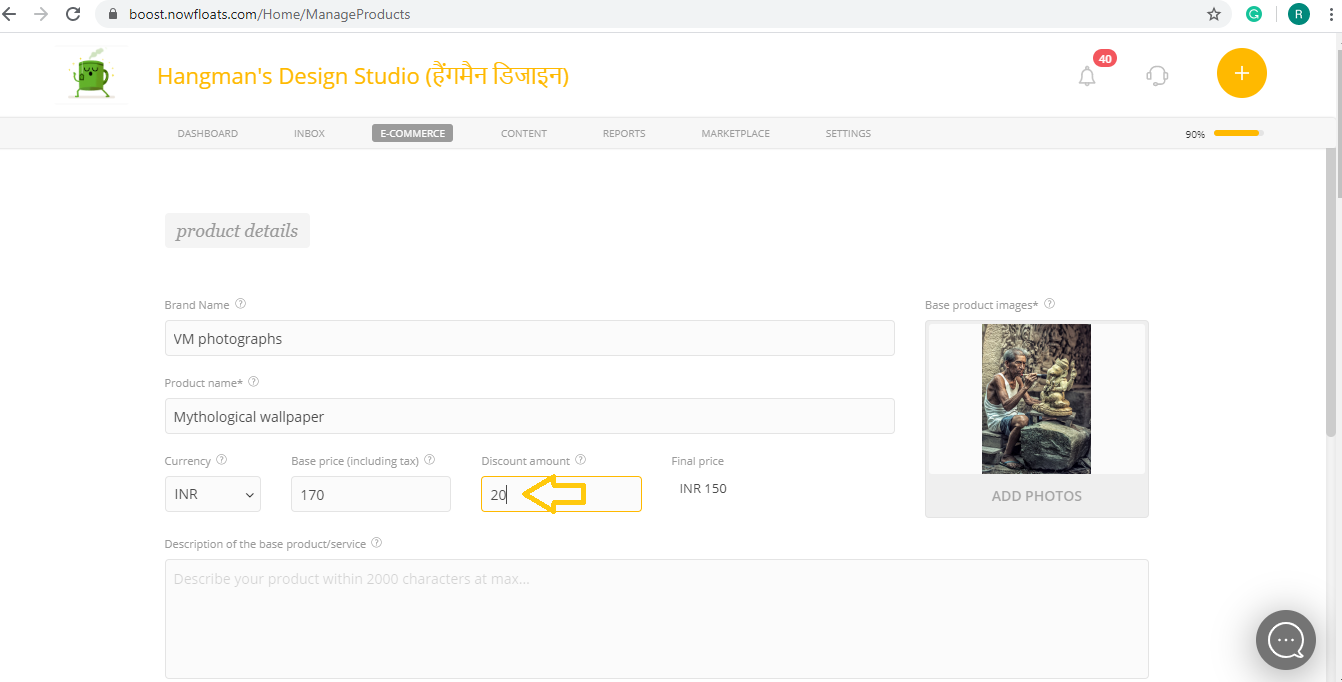
16. In the Description of the base product/service box, enter the description of your product/service.
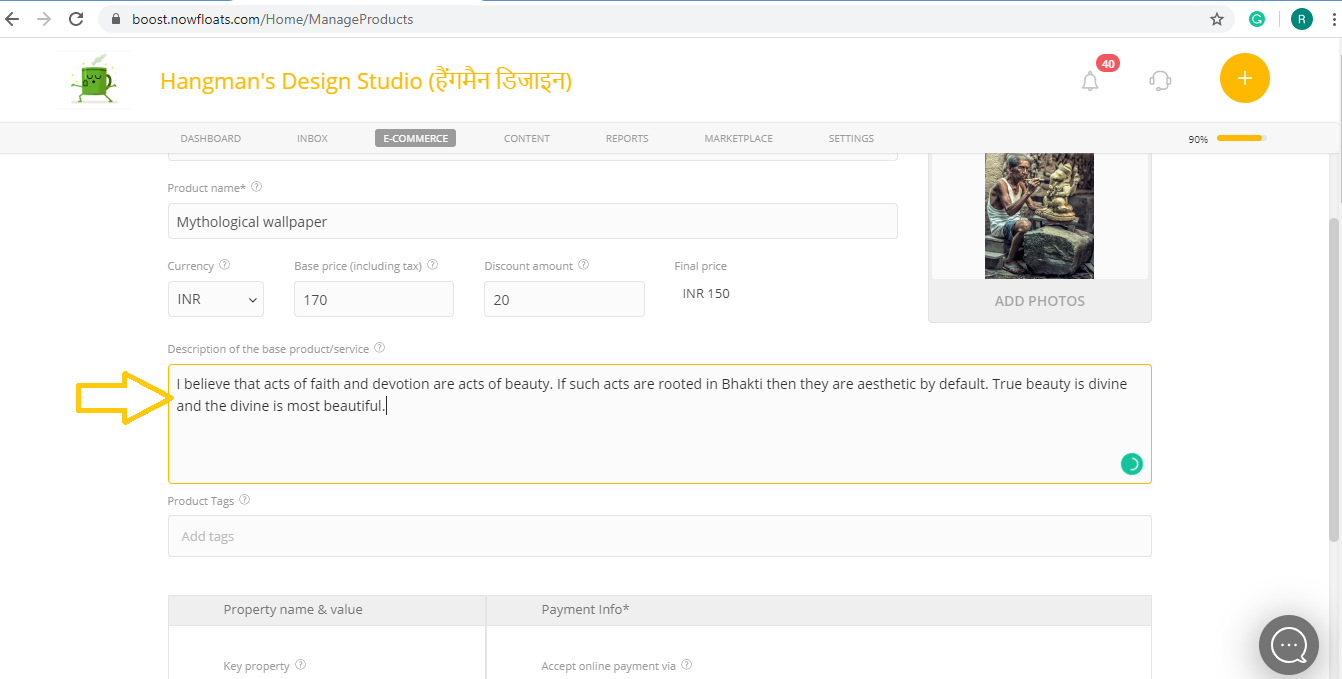
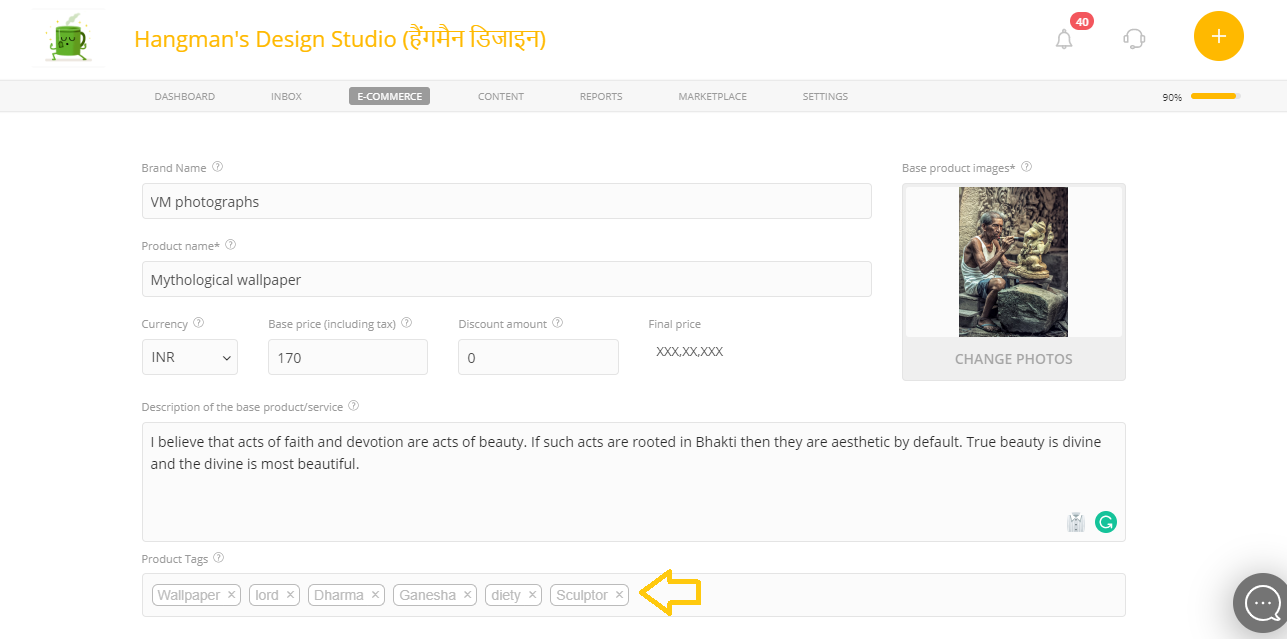
17. In the Product Tags box, add one word tags of your product.
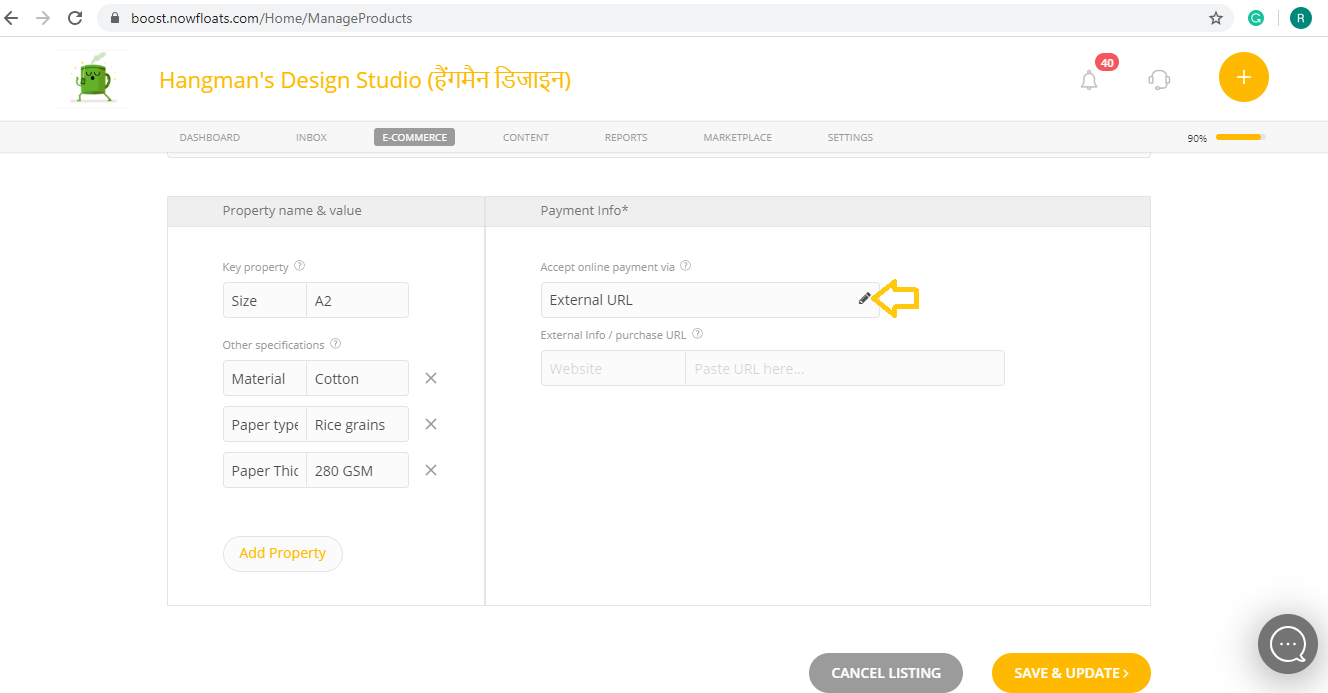
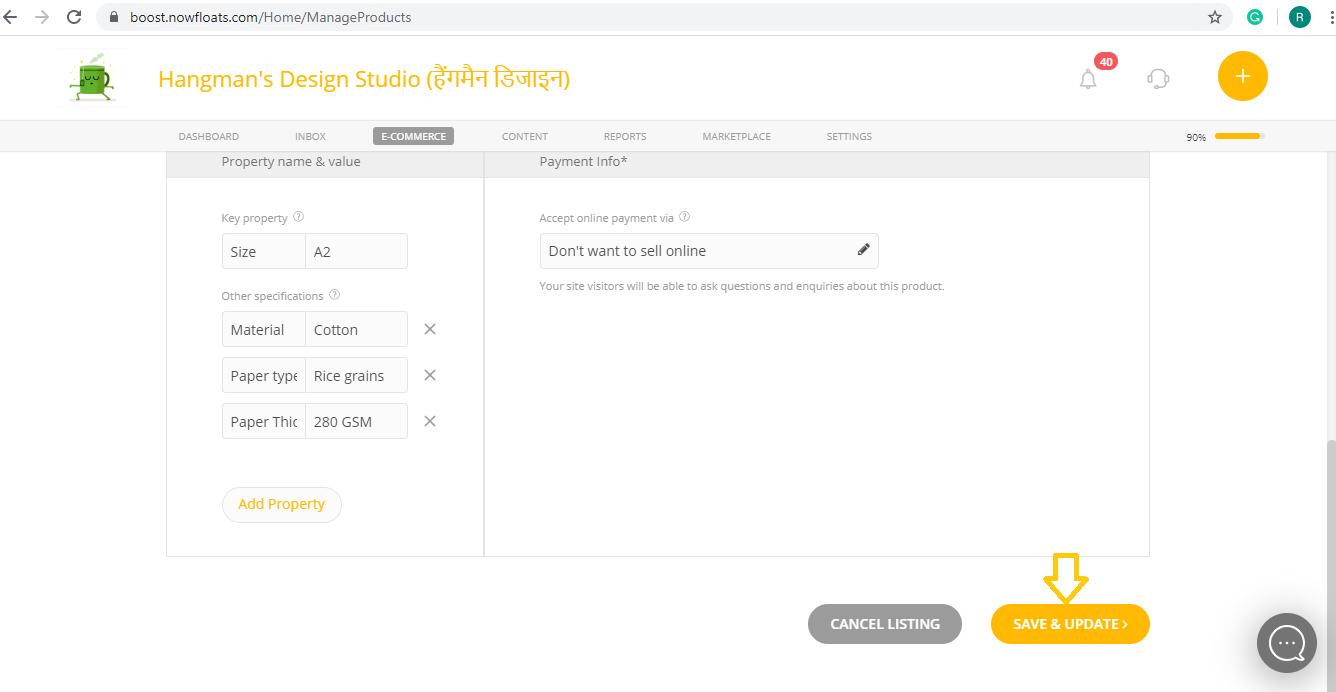
18. Enter Property Name and Value for your Product/Service.
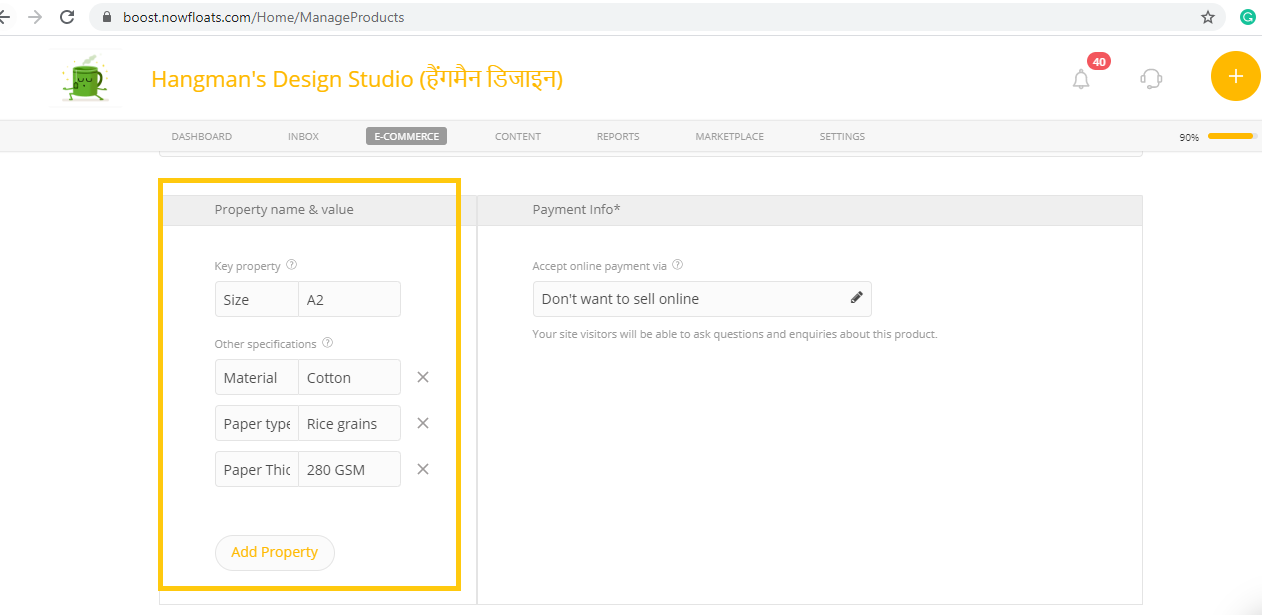
19. Click Pencil icon of the External URL.
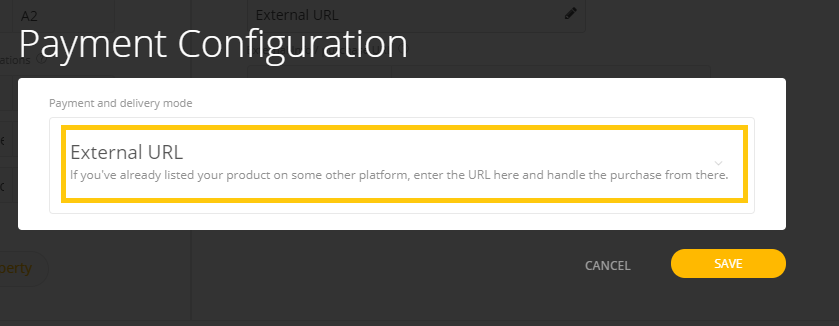
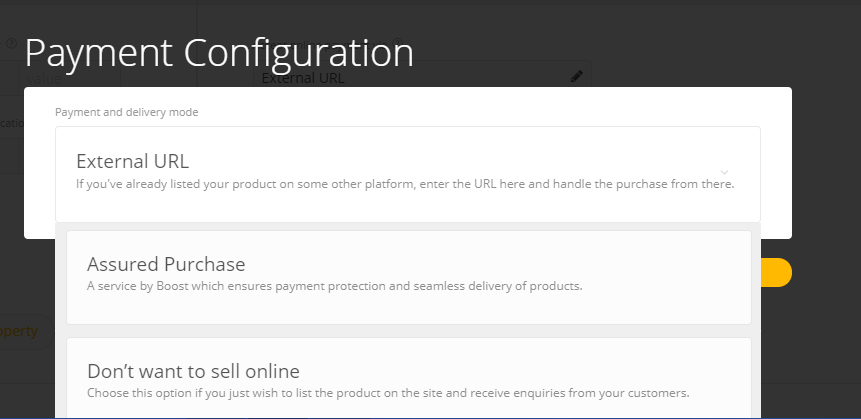
20. Click External URL to see more options of payment gateway and select desired payment gateway for your product/service.
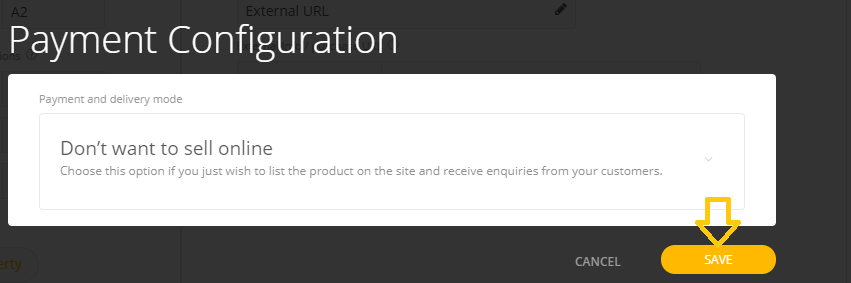
21. Click Save.
22. Click Save & Add.
Comments
0 comments
Please sign in to leave a comment.