
Note: To connect WhatsApp to your business site via Boost mobile apps instead of Boost Web, click here.
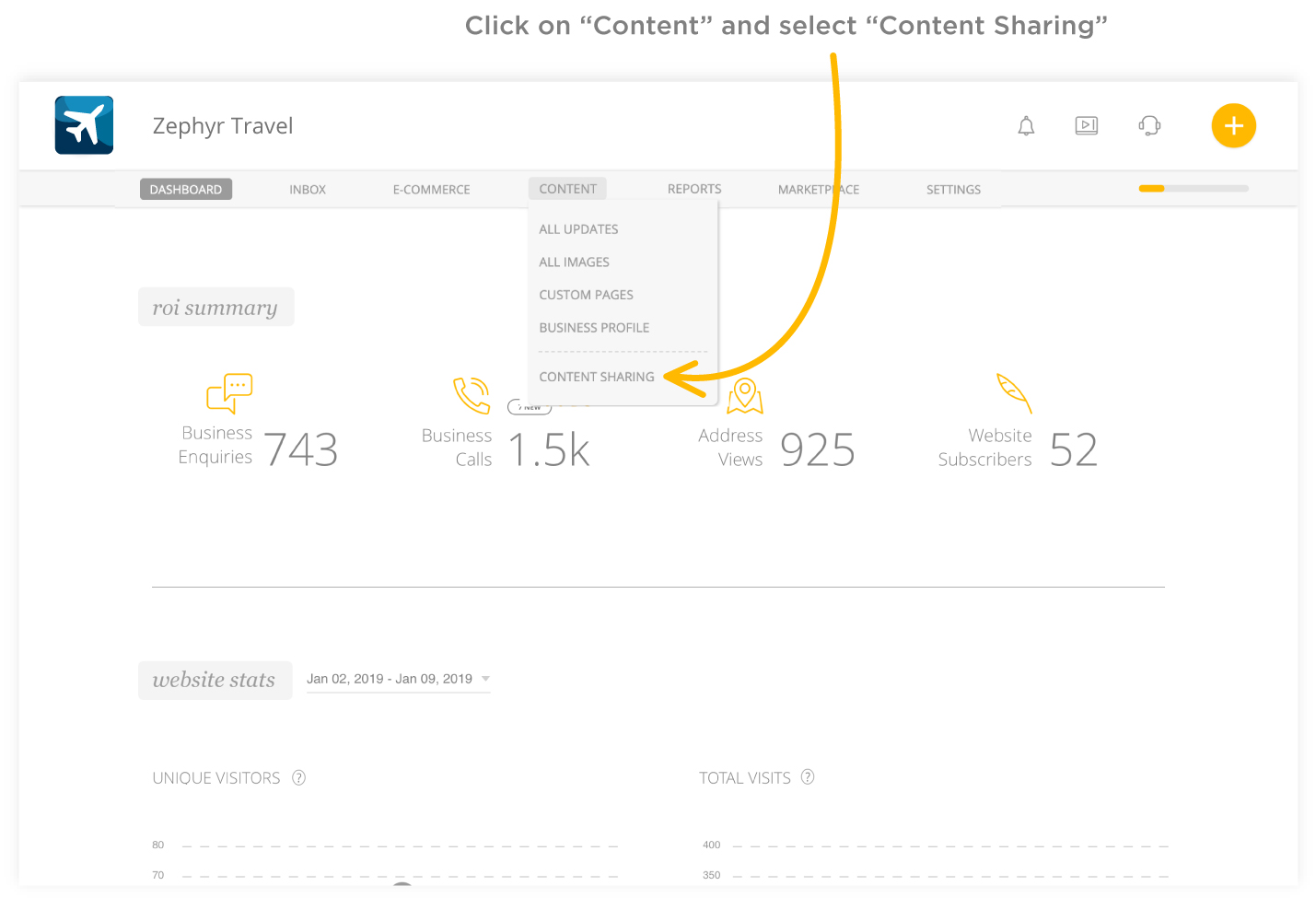
1. Go to the "Content" tab in the Header Menu and click on "Content Sharing"
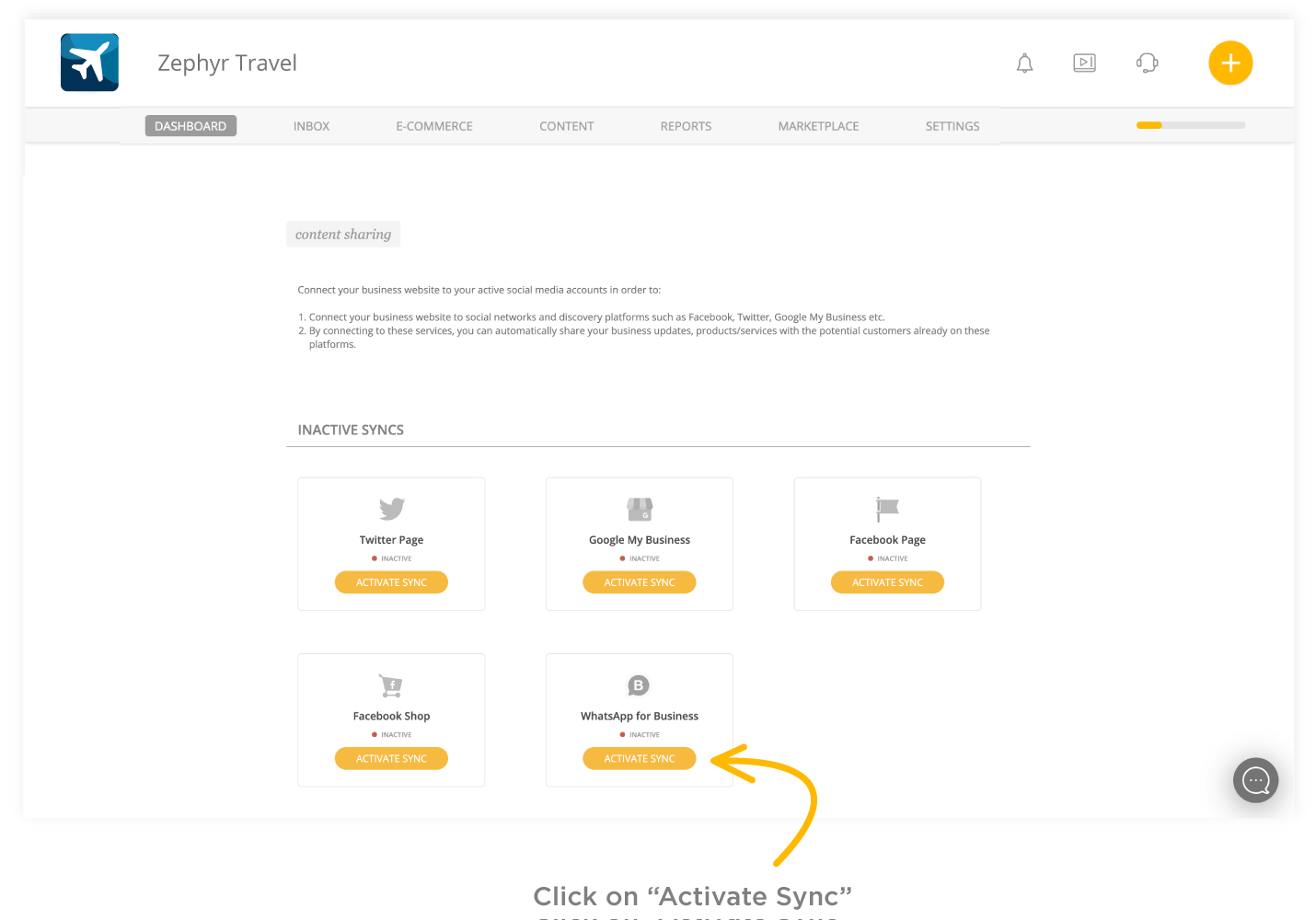
2. Look for "WhatsApp for Business" card and connect it by clicking on “Activate Sync”.
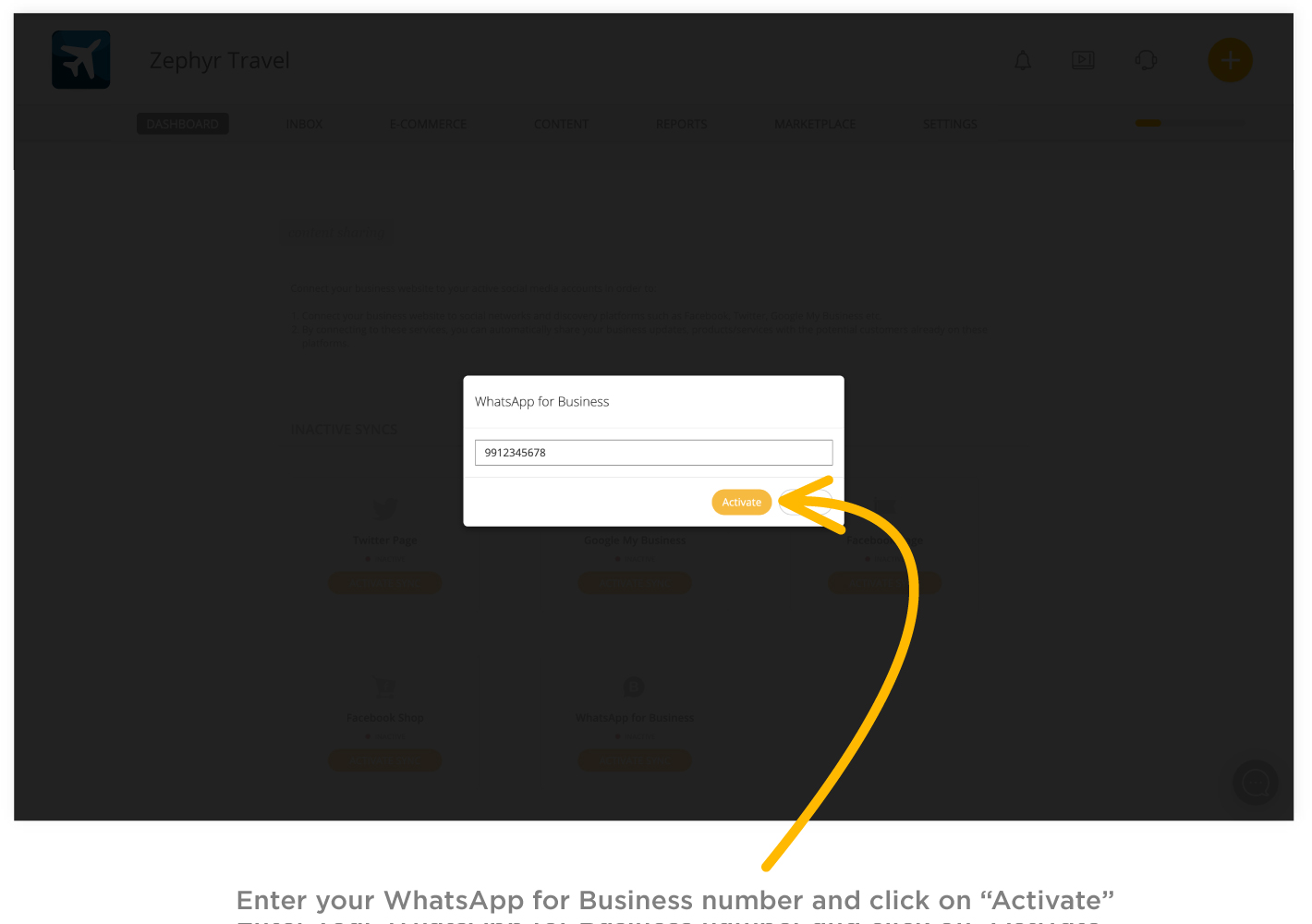
3. Simply enter the mobile number registered with your WhatsApp Business account and click on “Activate”. (Ignore country code, it will take your country's code as default). After clicking on activate, a “Chat with us” floating button will start appearing on your Boost business website.
How it helps you connect with customers (on desktop site)
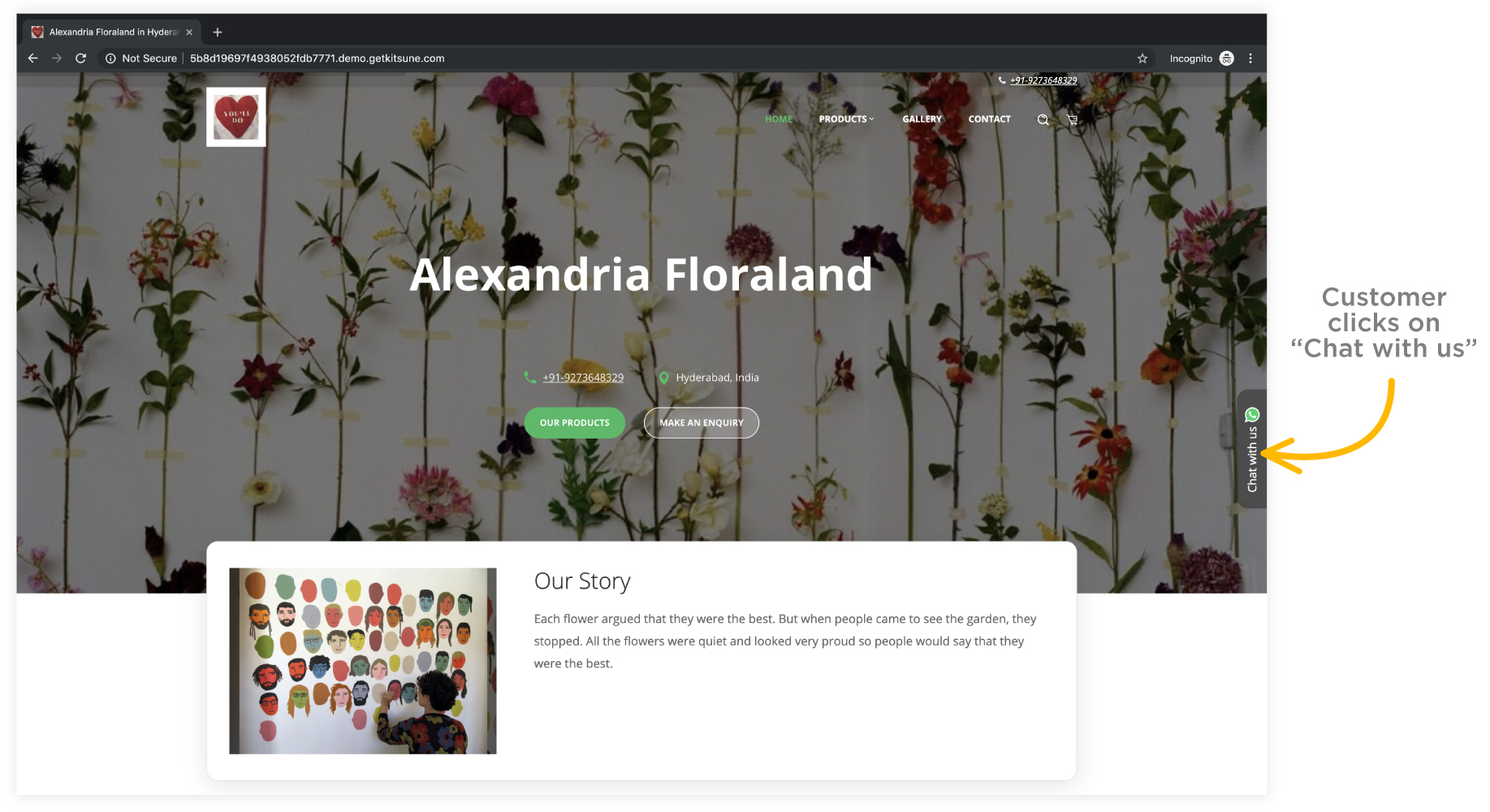
1. When a customer clicks on the “Chat with us” floating button on the right edge of the screen, it triggers a quick inquiry box.
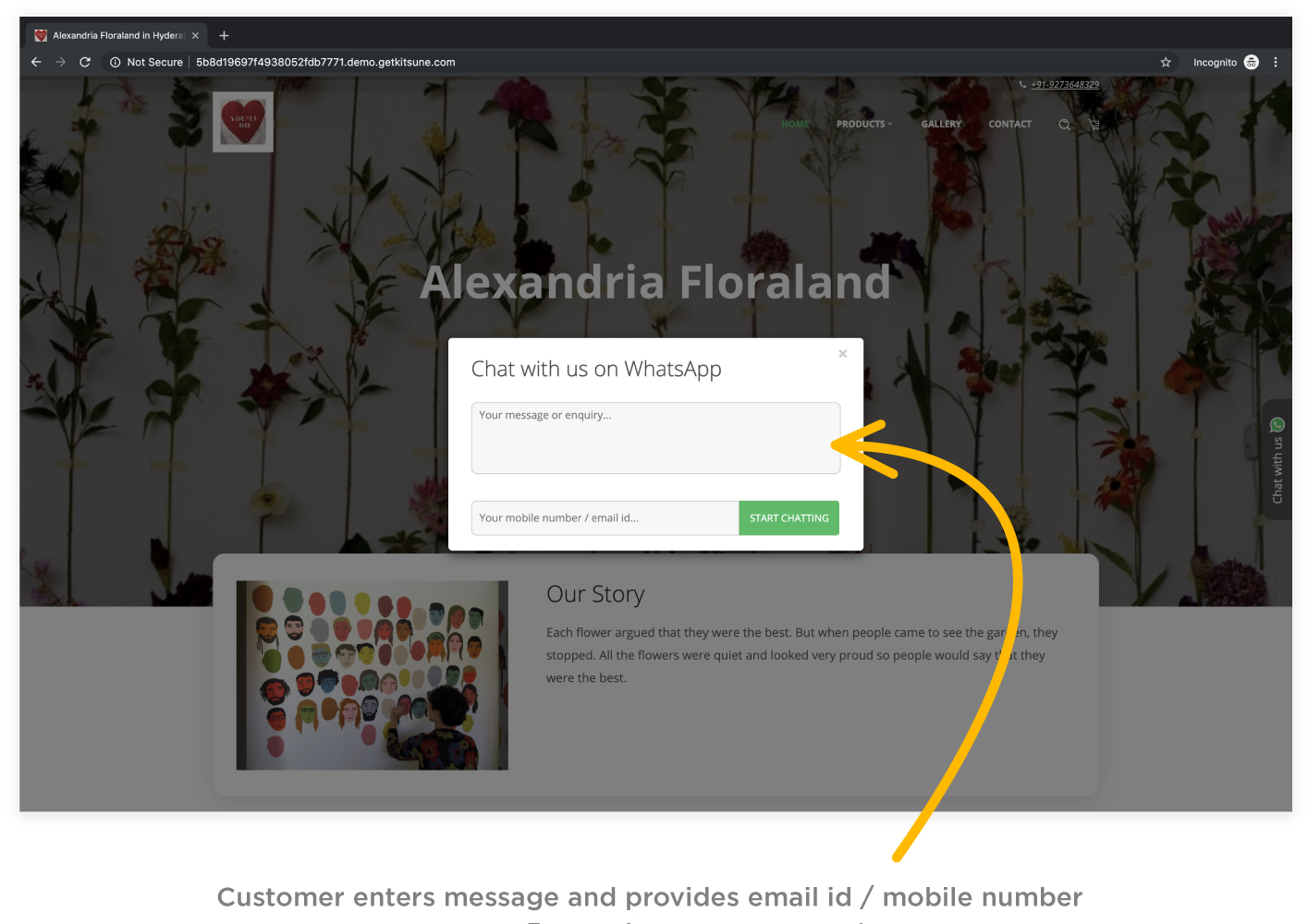
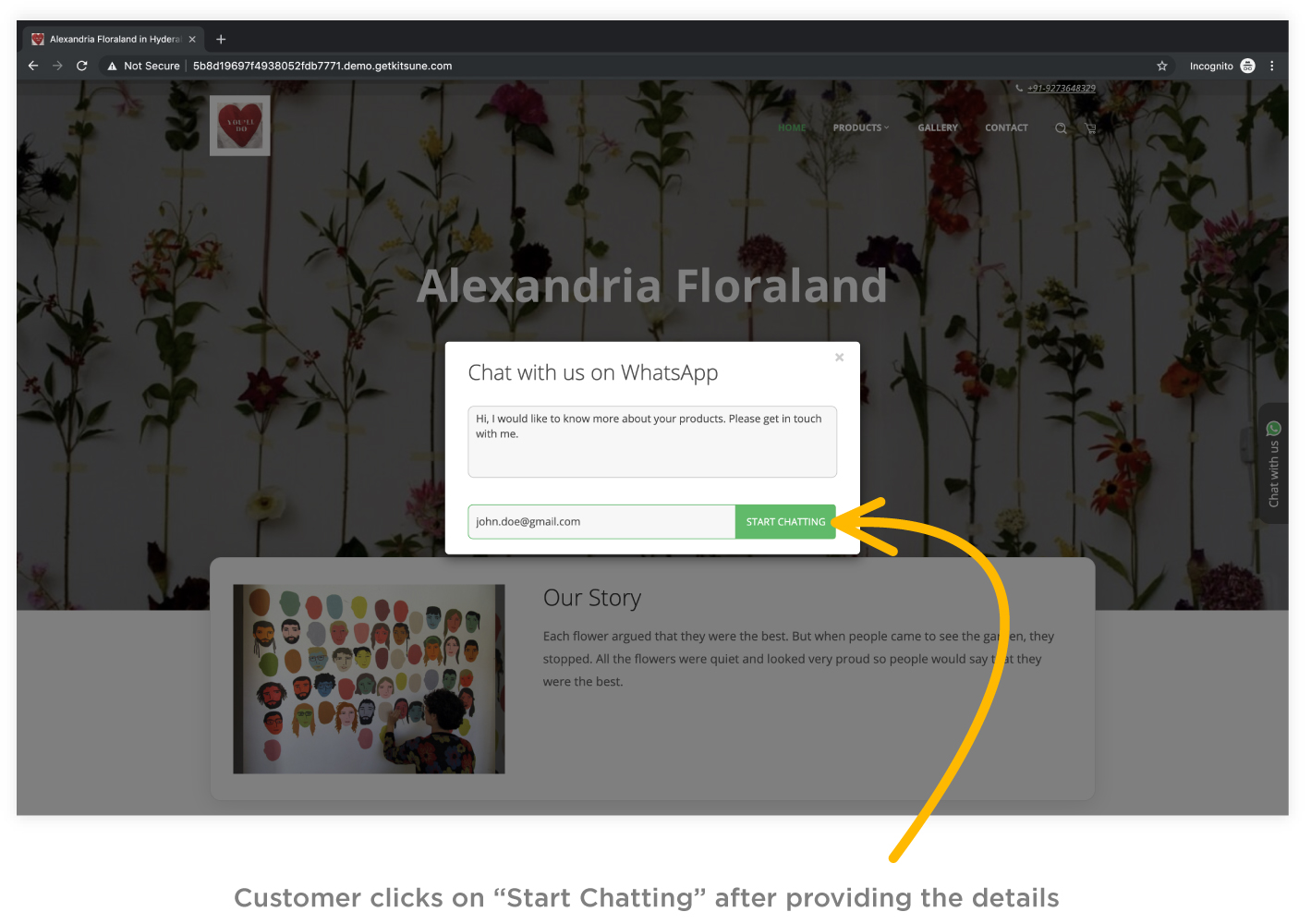
2. Customers can enter their message or inquiry in the pop-up along with their mobile number or email ID and click on ‘Start Chatting’ to begin a conversation.
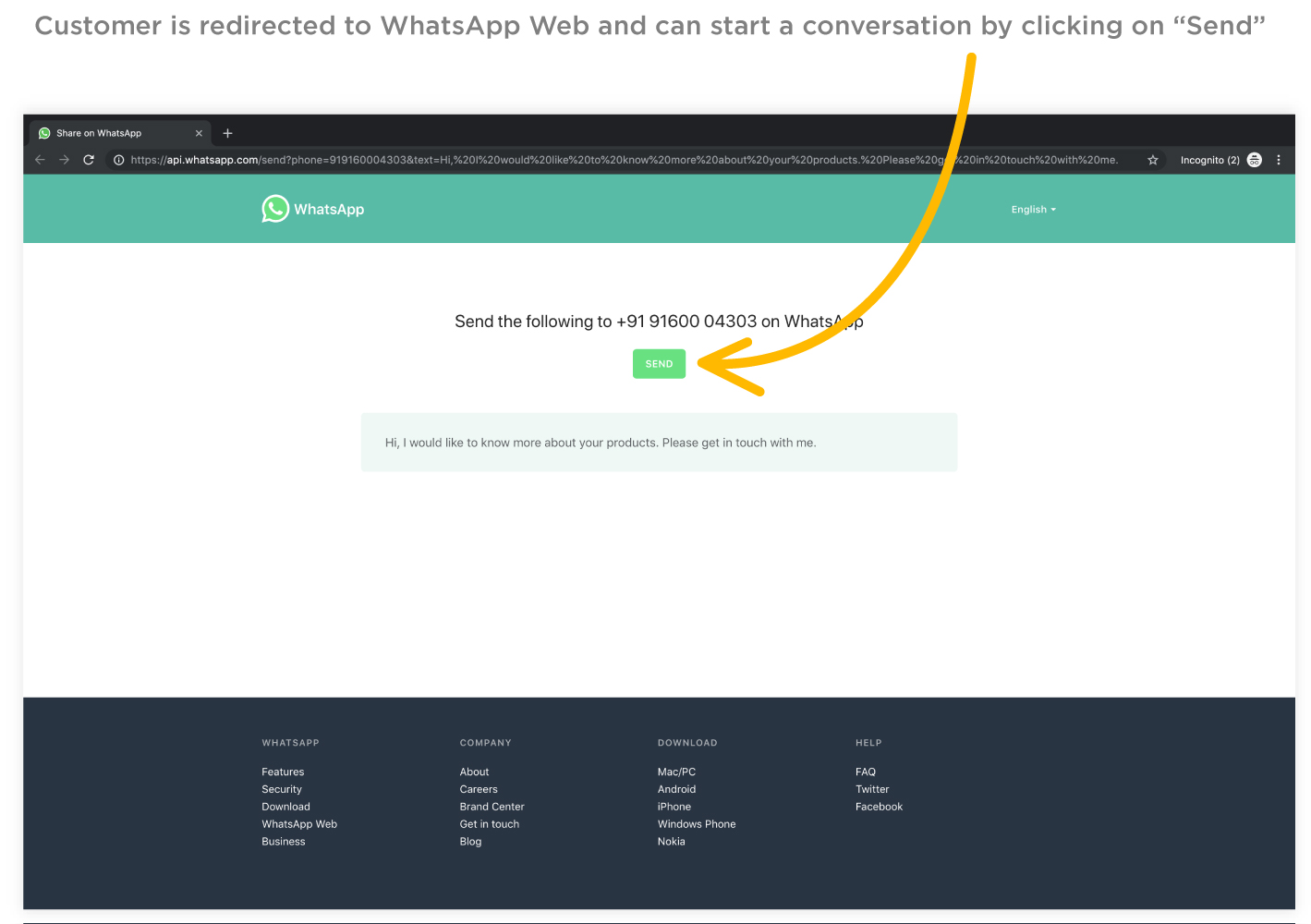
3. Customers are then redirected to WhatsApp Web on their desktop or WhatsApp Messenger on their mobile phones where all that they have to do is to click on “Send” to start chatting right away.
Clicking on send will open web.whatsapp.com in a new tab and open a chat window connecting you (business owner's WhatsApp business account) with your customer.
Note: This also registers an inquiry in the Business Enquiries section of your Boost App/Web. You can visit this section frequently to know the number of customers who have initiated a WhatsApp conversation with you using this feature.

Comments
0 comments
Please sign in to leave a comment.